Web Picture Downloader – Effortless Image Collection
In the digital age, images are everywhere. From inspirational design boards and research reference materials to personal memories and product catalogs, the web is a vast repository of visual content. Yet, for anyone who has ever tried to save more than a handful of images from a website, the process can quickly become tedious. Right-clicking and selecting “Save Image As…” for dozens or hundreds of pictures is not only time-consuming but also disrupts workflow. This is where web picture downloader tools come to the rescue. These powerful utilities automate the process, allowing you to scan, filter, and download multiple images from a single webpage or even an entire site in a matter of clicks. This comprehensive guide explores everything you need to know about web picture downloaders, from their core functionalities and key features to the best practices for using them effectively and ethically.
What is a Web Picture Downloader?
A web picture downloader is a software tool—typically a browser extension, a dedicated desktop application, or a command-line script—designed to extract and download images from websites in bulk. Instead of manually saving each image one by one, these tools scan a web page’s underlying code to identify all image resources, such as standard <img> tags, CSS background images, and even lazy-loaded content. They present these images in a user-friendly interface, allowing you to preview, filter, and select the specific files you want to save before initiating a bulk download. This transforms a potentially hours-long chore into a process that takes only seconds or minutes, making them invaluable for designers, researchers, content creators, and anyone who regularly works with online imagery.
How Web Picture Downloaders Work
Understanding the mechanics behind these tools can help you choose the right one and use it more effectively. While different applications have unique features, most follow a similar general process.
The Detection Process
When you activate a web picture downloader on a page, it performs a comprehensive scan of the Document Object Model (DOM). It looks for a wide range of image sources:
- Standard HTML Elements: This includes all
<img>tags on the page, which are the most common way to display images. - CSS Backgrounds: Many modern websites use CSS to set background images. Advanced downloaders can extract these
background-imageproperties as well. - Lazy-Loaded Images: To improve page speed, many sites use lazy loading, where images are only loaded when they scroll into view. Good downloaders can detect these images by looking for attributes like
data-src,data-original, ordata-lazy. - Responsive Images: For images that use the
srcsetattribute to provide multiple resolutions for different screen sizes, the tool can identify and list these variants. - Other Resources: Some downloaders can also extract images from video poster frames, SVG graphics, and even data URIs (images embedded directly into the HTML).
The User Interface and Selection Process
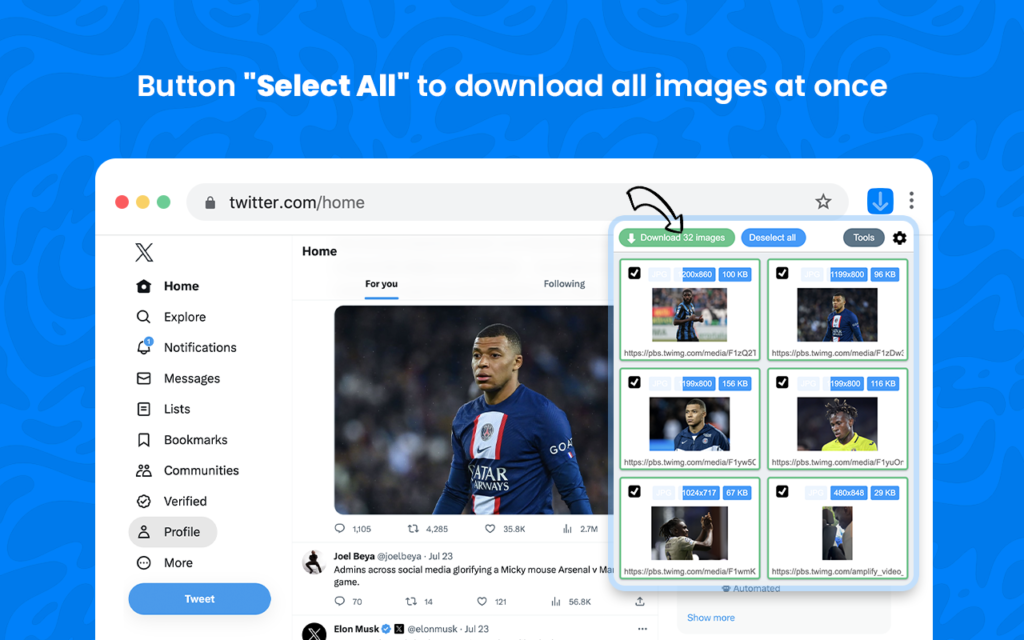
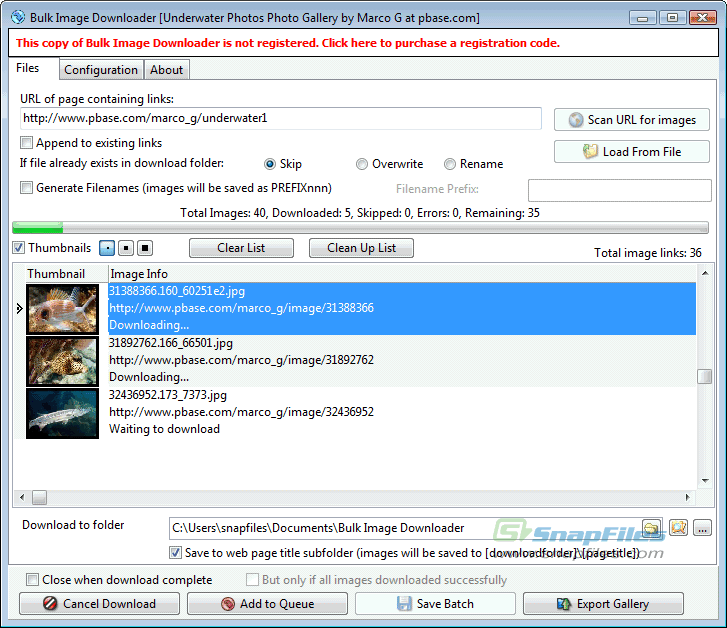
Once the scan is complete, the tool presents a gallery or list of all detected images. This interface is where the user gains control. You can typically:
- Preview Images: See thumbnails of the images before downloading to confirm you are getting the right files.
- Filter by Criteria: Use filters to narrow down the selection. Common filters include image dimensions (width and height), file type (JPG, PNG, WebP, GIF, SVG), and sometimes even the source URL pattern.
- Select Images: Choose individual images to download or use “Select All” to grab everything at once.
The Download Process
After making your selection, the tool handles the actual download. Most modern extensions use the browser’s built-in download API, which allows for background downloads. This means you can close the extension popup and continue browsing while the images save to your designated folder on your computer. Some advanced tools offer features like:
- Organizing into Subfolders: Automatically saving images into folders based on the source website or a custom naming convention.
- Renaming Files: Applying a consistent naming scheme to downloaded files for better organization.
- Downloading as a ZIP File: Some extensions, particularly for more complex extractions, allow you to download all selected images as a single ZIP archive.
Key Features of an Effective Web Picture Downloader
When choosing a web picture downloader, look for tools that offer a robust set of features to streamline your workflow and ensure you get the best results.
Comprehensive Image Detection
A top-tier downloader should be able to find more than just the obvious <img> tags. It should also detect:
- CSS Background Images: Essential for downloading hero images, banners, and other non-
imgcontent. - Lazy-Loaded Resources: The ability to find and download images that aren’t immediately loaded on the page is crucial on modern websites.
- All Major Image Formats: Full support for JPG, PNG, GIF, WebP, SVG, AVIF, BMP, and ICO files ensures you don’t miss anything.
Advanced Filtering Options
The ability to filter images is key to efficiency. The best tools allow you to:
- Filter by Width and Height: Download only images that meet specific dimension criteria, which is excellent for finding large, high-resolution wallpapers or ignoring tiny thumbnails.
- Filter by File Type: Narrow your search to only download PNG files with transparency or WebP files for their superior compression.
- Filter by URL Pattern or Keyword: Use a search term or regular expression to only download images that contain specific words in their URL or alt text. This is extremely useful for extracting product images from an e-commerce page or specific graphics from a design portfolio.
User-Friendly Interface
A clean, intuitive interface makes a significant difference in your experience. Look for:
- A Clear Image Grid or List: A well-organized layout with thumbnails makes it easy to browse and select images.
- Easy Selection Tools: “Select All” and “Select None” buttons are a must for bulk actions.
- Customizable Display: The ability to adjust the thumbnail size or toggle between a grid and list view allows you to tailor the interface to your screen size and preferences.
Bulk Downloading and Management
The primary purpose of these tools is bulk downloading. The process should be fast and efficient:
- One-Click Download: Download all selected images with a single button press.
- Background Downloading: The ability to close the popup and let the downloads continue in the background is a major convenience.
- Organization Features: Save images directly to subfolders based on the website’s name for easy file management, or define custom file naming rules.
Privacy and Security
Because these extensions often require permission to “access your data for all websites,” it is crucial to choose a tool that respects your privacy. A trustworthy downloader will process all image data locally on your device and will not collect or send any of your data or browsing history to external servers. This “privacy-first” approach ensures that your sensitive information remains protected.
Popular Types of Web Picture Downloaders
Web picture downloaders come in several forms, each with its own strengths and use cases.
Browser Extensions
This is the most common and user-friendly type for most people. They integrate directly into your browser (like Chrome or Firefox) and are easy to access. You simply navigate to the webpage you want to download images from, click the extension’s icon, and it displays all the images on that specific page. They are perfect for quick, one-off downloads and are typically very straightforward to use.
Examples include: “Image Downloader” for Chrome, “Bulk Image Downloader” for Firefox, and “Daemon Image Snatcher” for Firefox.
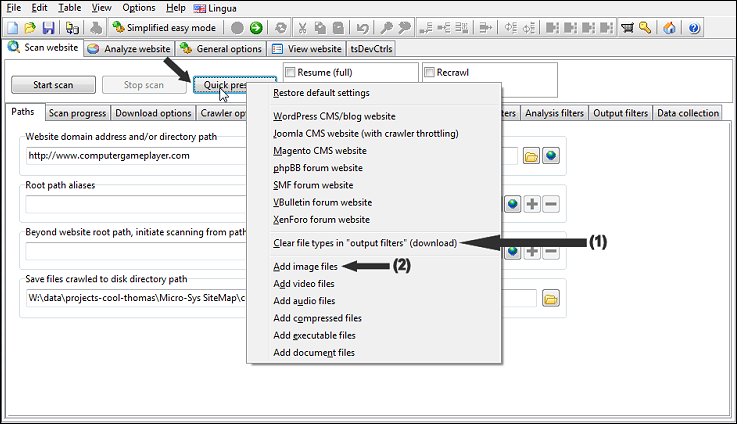
Dedicated Desktop Applications
For more heavy-duty or automated tasks, dedicated software applications are a powerful choice. These standalone programs often offer more advanced features than browser extensions, such as the ability to:
- Crawl Entire Websites: Follow links to download images from multiple pages or an entire domain automatically.
- Download from Password-Protected Sites: Manage logins and cookies to access content behind paywalls.
- More Granular Control: Offer advanced filtering, link searching, and project management capabilities.
- Handle a Wider Range of Media: Some can download videos, audio, and other file types in addition to images.
Examples include: “Extreme Picture Finder” and “WFDownloader”.
Command-Line Scripts
For developers and technically inclined users, Python scripts and other command-line tools provide the highest level of flexibility and automation. These can be used to build custom image scraping workflows, integrate with other data-processing pipelines, and download images from many websites with a single command. While they have a steeper learning curve, they are incredibly powerful for bulk data collection and research purposes.
Examples include: “Python-Image-Downloader” and Swiss AI Center’s “image-scraper.py”.
Practical Applications and Use Cases
Web picture downloaders are versatile tools that can benefit a wide range of users and professions.
For Designers and Creatives
Designers frequently need to collect inspiration, build mood boards, and gather reference material. A web picture downloader allows them to quickly save a large portfolio of images from a site like Pinterest, Behance, or an inspiration gallery, saving valuable time that can be better spent on the actual creative process. The ability to filter by size is also helpful for sourcing high-resolution images for projects.
For Researchers and Academics
For researchers, visual data can be a critical part of an investigation. Whether it’s analyzing social media trends, studying art history, or documenting environmental changes, the ability to quickly and systematically download image datasets from various websites is a huge advantage. Python-based scraper tools are often the preferred choice for this, as they can be tailored to collect large quantities of images based on specific keywords for analysis.
For Content Creators and Bloggers
Bloggers, social media managers, and video creators often need to find and use images for their content. A bulk downloader helps them quickly gather images from stock photo sites, news outlets, or other sources to supplement their articles, presentations, or video thumbnails, ensuring they have a wide selection of visuals to choose from.
For E-commerce and Market Intelligence
Businesses can use these tools to monitor competitors, analyze product catalogs, and gather market intelligence. For example, an online retailer could use a downloader to capture all product images from a competitor’s new collection to analyze their photography style or to compare product features. This ability to gather visual data at scale can provide a significant competitive advantage.
For Personal Organization and Archiving
On a personal level, these tools are excellent for creating offline archives. Users can download entire photo albums from social media, save travel photos from a blog, or create a local backup of valuable online content to ensure they have access to it even without an internet connection.
Best Practices for Using Web Picture Downloaders
While these tools are powerful, it’s important to use them responsibly and effectively.
Respecting Copyright and Terms of Service
The most critical practice is to be aware of and respect copyright laws. Not all images on the internet are free to download and use. Before downloading any image, consider its intended use:
- Personal Use: Downloading images for personal reference, inspiration, or your own offline archive is generally acceptable.
- Commercial Use: Using downloaded images for commercial purposes (in products, marketing, or any scenario that generates revenue) almost always requires explicit permission from the copyright holder, unless the image is explicitly marked as “royalty-free” or under a license like Creative Commons. Always check the website’s terms of service and copyright notices.
Considering Server Load
Downloading hundreds or thousands of images at once can put a strain on a website’s server. To be a considerate internet user:
- Use Throttling Features: Some advanced tools allow you to throttle the download speed or limit the number of concurrent downloads. Using these features can prevent you from overwhelming the server.
- Don’t Download Excessively: Avoid running large batch downloads on a website repeatedly in a short period.
Verifying Image Quality and Source
Be aware of what you are downloading:
- Check for Thumbnails: Some downloaders will only detect the thumbnail versions of images that are currently in the viewport. If you need high-resolution files, look for a downloader that can search the page for full-size versions or use a tool that can crawl the site to find the original images.
- Review Your Selection: Always preview and filter your selection before hitting the download button to avoid filling your hard drive with irrelevant or low-quality files.
Managing Downloads Efficiently
To keep your computer organized:
- Use a Download Manager: For large batches, use a subfolder organization feature to keep files from different websites separate.
- Rename Files: Use renaming features to apply consistent file names that describe the content, making them easier to find later.
- Clean Up Your Downloads: After you’re done, delete any files you don’t need to free up disk space.
Frequently Asked Questions (FAQs)
1. How does a web picture downloader differ from just right-clicking and saving an image?
Right-clicking is a manual, one-by-one process. A web picture downloader automates the entire process. It scans a webpage, detects every image on it (including those not immediately visible, like CSS backgrounds or lazy-loaded content), and then allows you to preview, filter, and download all selected images in bulk with a single click, saving you an immense amount of time.
2. Is it legal to use a web picture downloader?
The legality of downloading images depends entirely on how you use them. Downloading images for personal use, organization, or offline viewing is generally considered acceptable. However, downloading images for commercial use, publishing them on your own site, or claiming them as your own without permission is a violation of copyright law. Always respect the website’s terms of service and the intellectual property rights of the content creator.
3. Can these tools download images from any website?
While web picture downloaders are designed to work universally, their effectiveness can vary. They will work on the vast majority of standard websites. However, sites that heavily use JavaScript to dynamically load content, such as many social media platforms (e.g., Instagram, Facebook), or those that implement advanced anti-scraping measures, can be more challenging. Some tools use advanced methods like “viewport detection” or wait for JavaScript to load to handle such cases, but there is no 100% guaranteed success rate for every single site.
4. Is it safe to use these browser extensions? Do they collect my data?
Most reputable extensions are safe and follow a “privacy-first” design. They process all image data locally on your device and declare that they do not collect or send your personal data or browsing history to external servers. However, it is always a good practice to choose well-known extensions with many positive user reviews and to carefully read the permissions they request and their privacy policy before installing them.
5. What should I do if my downloader is not finding all the images on a page?
If your extension is missing some images, try the following steps:
- Scroll Down the Page: Many sites use lazy-loading. Scroll all the way to the bottom to ensure all images are loaded before you run the scan.
- Check the Filters: Ensure you don’t have overly restrictive filters (like a minimum width that is too high) enabled.
- Try a Different Tool: Some extensions are more powerful than others. “Daemon Image Snatcher” and “PicPicker,” for example, are noted for their ability to find complex images like CSS backgrounds and lazy-loaded resources.
- Look for a “Browser” or “Selenium” Option: If you are using a command-line tool, try using the Selenium option if available. This allows the tool to open a real browser and execute the page’s JavaScript, which can help render and detect dynamic content.
Conclusion
Web picture downloaders are essential tools in the modern digital toolkit. By automating the tedious process of manual image saving, they unlock new levels of efficiency for professionals and casual users alike. Whether you are a designer gathering inspiration, a researcher compiling datasets, a marketer performing competitive analysis, or simply someone who wants to build a personal collection of beautiful images, these tools can save you hours of time. By choosing a tool with a comprehensive feature set—like advanced detection, powerful filters, and a strong commitment to user privacy—and using it responsibly and within the bounds of copyright law, you can harness the full power of the web’s visual content in a way that is both effective and ethical. As the web continues to evolve, web picture downloaders will remain an invaluable asset for navigating and managing its rich visual landscape.