SuperAntiSpyware Free Edition 2026 – Is It a Reliable Malware Scanner.
You already have an antivirus program installed on your Windows PC. You run regular scans. You think you’re protected. But then your browser starts acting strange—unexpected pop-ups, a new toolbar you never installed, or search results that look different. Sound familiar?
This is where SuperAntiSpyware Free Edition comes into play. Unlike your standard antivirus, which focuses on viruses and worms, SuperAntiSpyware specializes in detecting and removing spyware, adware, tracking cookies, trojans, and potentially unwanted programs (PUPs). It is not designed to replace your main antivirus. Instead, it acts as a secondary, on-demand scanner that catches threats your primary security software might miss.
With over 6.9 million downloads on CNET and a user rating of 4.3/5 from more than 1,600 reviews, this free tool has a long history. But is it still effective in 2026? Some users praise its deep scanning capabilities. Others report false positives or aggressive upgrade prompts.
In this article, we will explore SuperAntiSpyware Free Edition honestly. You will learn how it works, its main features, system requirements, installation steps, and real-world pros and cons. By the end, you will know if this free spyware remover deserves a spot on your PC.
Software Overview
SuperAntiSpyware Free Edition is a Windows security utility developed by SUPERAntiSpyware.com. Unlike full-featured security suites, it focuses on one primary task: scanning your computer for spyware and other forms of malware, then removing whatever it finds.
The software offers three types of scans:
- Quick Scan: Checks critical system areas (memory, registry, running processes).
- Complete Scan: Thoroughly examines your entire hard drive.
- Custom Scan: Lets you choose specific folders, drives, or files to scan.
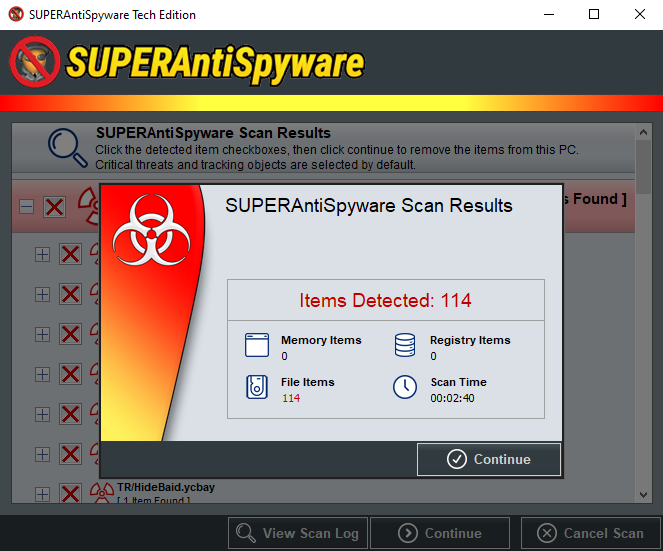
Once installed, the program is straightforward. You open it, update the threat definitions (manually, since the free version lacks automatic updates), select a scan type, and let it run. When the scan finishes, you see a clear list of detected threats, each with a risk level. You can then select which items to remove.
However, there are important limitations to the free edition. It does not provide real-time protection. That means it will not block malware from installing in the first place. It also does not automatically update its definitions. You must click the “Check for Updates” button each time before scanning.
The paid “Pro” version adds real-time protection, automatic updates, scheduled scanning, and support for removable drives (USB scanners). But many users find the free version sufficient for occasional, on-demand cleaning.
SuperAntiSpyware is intended to be used alongside, not instead of, a traditional antivirus program like Microsoft Defender, Avast, or Bitdefender.
Main Features Explained in Detail
1. Three Flexible Scan Modes
SuperAntiSpyware offers more scanning options than many free competitors. Here’s how each mode works:
- Quick Scan: This scan targets the most common hiding spots for spyware and tracking cookies. It checks your computer’s memory (RAM), the Windows registry, startup programs, and system folders. A Quick Scan typically takes 5–15 minutes, depending on your system. It is perfect for a fast health check before browsing sensitive sites or after visiting a suspicious website.
- Complete Scan: This is a deep, exhaustive scan that checks every file and folder on your hard drive. It will find almost any spyware or adware present, but it can take anywhere from 30 minutes to several hours. Users with large hard drives (1TB or more) should run this scan overnight or when they don’t need the computer.
- Custom Scan: This gives you full control. You can select specific drives (e.g., only your D: drive), individual folders, or particular file types. For example, if you suspect a downloaded program from a certain folder is malicious, you can scan just that folder. This saves time compared to a complete system scan.
2. Detection of Spyware, Adware, Trojans, and Tracking Cookies
SuperAntiSpyware’s core strength is its threat database, which is updated daily (though you must manually download updates in the free version). The software specializes in:
- Spyware: Programs that secretly monitor your activity and steal personal information.
- Adware: Software that forces unwanted advertisements onto your screen, often within your browser.
- Tracking Cookies: Small text files that websites use to track your browsing habits across the internet.
- Trojans: Malware disguised as legitimate software.
- Worms: Self-replicating malware that spreads across networks.
- Potentially Unwanted Programs (PUPs): Bundled software you may have accidentally agreed to install, like browser toolbars or system optimizers.
Many user reviews mention that SuperAntiSpyware found tracking cookies and adware that other scanners—including Malwarebytes and CCleaner—missed. This makes it a valuable second opinion tool.
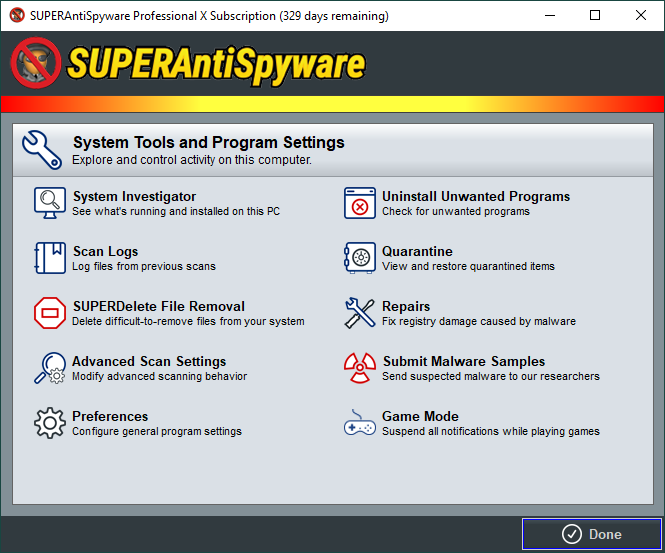
3. Repair Tools for System Changes
Some types of malware don’t just exist as files; they alter your Windows settings. They might change your browser homepage, disable the Task Manager, hide system files, or block access to Windows Update.
SuperAntiSpyware Free Edition includes basic repair tools to undo these changes. After removing malware, you can use the software to:
- Reset your browser homepage and search provider (for Internet Explorer, Chrome, and Firefox).
- Repair broken registry permissions.
- Restore hidden file settings.
- Re-enable the Task Manager and Registry Editor if disabled by malware.
These repair features are particularly helpful for users who aren’t comfortable manually editing the Windows registry.
4. Clear and Actionable Scan Results
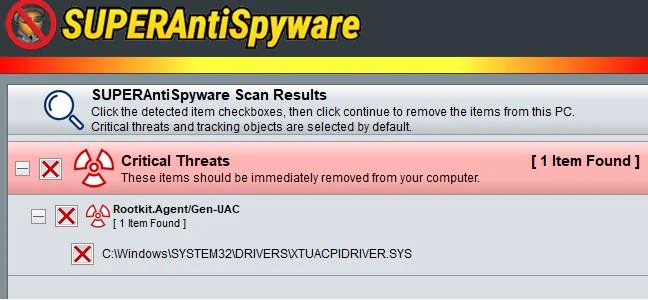
When a scan finishes, SuperAntiSpyware presents a clean, color-coded list of detected items:
- Red: High-risk threats (spyware, trojans) that should be removed immediately.
- Yellow: Medium-risk items (adware, PUPs) that you may want to review.
- Blue: Low-risk tracking cookies.
Each detected item shows its file path, registry key, or memory location. You can uncheck any item you want to keep (e.g., a harmless tracking cookie from a trusted site) before clicking “Remove.” This transparency is rare among free scanners.
5. Manual Definition Updates (Free Version)
The free version does not automatically update its malware definitions. However, updating is simple: open the program, click the “Check for Updates” button, and the software downloads the latest definition database. The update process takes only a few seconds over an internet connection.
Best practice: Always click “Check for Updates” before every scan. Old definitions miss new threats. This manual step is the main trade-off for using the free edition.
6. Quarantine for Safe Recovery
When SuperAntiSpyware removes a file, it does not delete it permanently right away. Instead, it moves the suspicious file into a quarantine folder. Quarantined files cannot run or harm your system.
If you accidentally remove something important (a false positive), you can open the Quarantine Manager and restore the file to its original location. After a few weeks of normal system operation, you can safely delete quarantined items to free up disk space.
7. Portable Scanner Option (For Advanced Users)
The developer offers a portable version of SuperAntiSpyware. This does not require installation. You can run it directly from a USB flash drive. This is useful for scanning a computer that won’t boot normally or for technicians servicing multiple PCs. However, be aware that some users have reported the portable version leaving behind files after use (read the FAQ section for solutions).
System Requirements
SuperAntiSpyware Free Edition is lightweight and compatible with a wide range of Windows versions, from older systems to the latest Windows 11.
| Component | Minimum Requirement | Recommended |
|---|---|---|
| Operating System | Windows XP, Windows Vista | Windows 10 or Windows 11 |
| Also Supported | Windows 7, Windows 8, Windows 8.1 | Windows 10/11 (64-bit) |
| Processor | 1 GHz (any) | 2 GHz dual-core |
| RAM | 512 MB | 2 GB or more |
| Hard Disk Space | 100 MB free | 500 MB free (for quarantine) |
| Internet Connection | Required for definition updates | Broadband (for faster updates) |
| Additional Software | None (standalone) | Microsoft Defender or other antivirus (for real-time protection) |
Note: While SuperAntiSpyware runs on Windows XP and Vista, using these outdated operating systems is not secure. Upgrade to a modern Windows version if possible.
How to Install SuperAntiSpyware Free Edition (Step-by-Step)
Installing SuperAntiSpyware is simple, but because it is a security tool, you must pay attention to each step. Follow this guide carefully.
- Download the installer
Go to the official CNET Download page for SuperAntiSpyware Free Edition. Click the “Download” button. Save the file (e.g.,SUPERAntiSpyware.exe) to your computer’s Downloads folder. - Run the installer as administrator
Right-click the downloaded file and select “Run as administrator.” This gives the installer the permissions it needs to integrate with Windows security settings. - Allow User Account Control
If a UAC prompt appears asking, “Do you want to allow this app to make changes to your device?” click “Yes.” - Choose your language
The installer will present a language selection screen. Choose your preferred language (English is default) and click “OK.” - Review the license agreement
Read the End User License Agreement. Select “I accept the agreement” and click “Next.” - Select destination location
You can choose where to install the program. The default folder (C:\Program Files\SUPERAntiSpyware) is recommended. Click “Next.” - Select additional tasks
You will see options to create a desktop icon and a Quick Launch icon. Check the boxes according to your preference. It is also safe to leave the default settings. Click “Next.” - Choose installation type
Select “Typical Installation” for the standard setup. (The “Custom” option is for advanced users who want to omit certain components.) Click “Next.” - Install the software
Click “Install” to begin copying files. The process usually takes less than one minute. - Complete the installation
When the installation finishes, you will see a completion screen. Uncheck “Run SUPERAntiSpyware” if you want to update definitions first (see next step). Click “Finish.” - First launch and update
Open SuperAntiSpyware from your Start menu or desktop shortcut. Before scanning, click the “Check for Updates” button on the main screen. Wait for the definitions to download. - Perform your first scan
After updating, click “Scan your Computer…” Choose a scan type (Quick Scan is fine for first use). Let the scan run and review the results.
You are now ready to use SuperAntiSpyware as an on-demand scanner.
Pros and Cons
Based on over 1,600 user reviews, technical analysis, and real-world testing, here is an honest look at the advantages and disadvantages of SuperAntiSpyware Free Edition.
| Pros ✅ | Cons ❌ |
|---|---|
| Effective at finding spyware and adware missed by others | No real-time protection in free version |
| Easy-to-use, uncluttered interface | Must manually update definitions before each scan |
| Offers Quick, Complete, and Custom scans | Occasional false positives (flags safe programs as threats) |
| Clear, color-coded scan results with risk levels | Shows upgrade prompts to the Pro version |
| Includes repair tools for system changes | Some users report long scan times on large drives |
| Quarantine feature for safe recovery | Rare installation errors on older Windows 7 systems |
| Portable version available for USB drives | Can be overly aggressive with tracking cookies |
| Very low system resource usage when not scanning | Customer support is limited for free users |
| Compatible with Windows 11 down to Windows XP | No scheduled scanning in free version |
| Trusted for 6.9+ million downloads | Some users report leftover files after uninstallation |
Practical Use Cases and Benefits
1. Second Opinion After a Regular Antivirus Scan
You run Microsoft Defender weekly. It always says “No threats found.” Yet your browser feels sluggish. By running a SuperAntiSpyware Complete Scan, you discover dozens of tracking cookies and a few adware leftovers. Removing them speeds up your browsing. This is the most common use case: using SAS as a secondary scanner to catch what your main antivirus overlooks.
2. Cleaning an Already Infected Computer
If your PC is already showing clear signs of infection—pop-ups, redirected searches, unknown programs launching at startup—your antivirus may be compromised. SuperAntiSpyware can often run even when other security tools fail. Install it from a USB drive if needed, update definitions, and run a Full Scan. The repair tools can then fix browser and system settings.
3. Removing Browser Hijackers and Toolbars
Some of the most annoying malware comes in the form of browser extensions or toolbars that change your homepage or insert ads. Standard antivirus software often ignores these as “potentially unwanted programs” rather than viruses. SuperAntiSpyware specifically targets and removes these items, restoring your browser to normal.
4. Regular Maintenance for Privacy-Conscious Users
Even if you don’t have obvious malware, tracking cookies accumulate on every computer. These cookies monitor which sites you visit. For privacy-minded individuals, running a SuperAntiSpyware Quick Scan once per week, removing all tracking cookies, is a simple habit that reduces online tracking.
5. Safe Scanning of Removable Drives (USB Sticks)
You borrowed a USB drive from a colleague. You aren’t sure if it’s clean. Before opening any files, plug in the USB, open SuperAntiSpyware, and run a Custom Scan pointed at the USB drive letter (e.g., E:). This scans only the removable drive, quickly, and protects your main system from any autorun malware.
Frequently Asked Questions (FAQ)
1. Does SuperAntiSpyware Free Edition replace my regular antivirus?
No. The free edition does not provide real-time protection. It only scans for malware when you manually start a scan. Without real-time protection, new malware can infect your PC between scans. You should always use a traditional antivirus program (like Microsoft Defender, Avast, or Bitdefender) that runs continuously in the background. Think of SuperAntiSpyware as a specialized cleaning tool, not an always-on shield.
2. Why does SuperAntiSpyware say some safe programs are malware (false positives)?
Some user reviews mention that SuperAntiSpyware flagged legitimate software like JDownloader or parts of Google Chrome as malware. This usually happens because the software includes “potentially unwanted programs” (PUPs) in its database. A PUP is not a virus, but it may show ads or bundle extra software. If you trust a program that SAS flags, you can uncheck it during removal. Alternatively, add the file to the “Ignore List” in the program’s settings. Always double-check before removing system files.
3. How often should I update and scan with the free version?
Because the free version does not auto-update, you should manually click “Check for Updates” before every scan. As for scanning frequency:
- Quick Scan: Once per week (for most home users).
- Complete Scan: Once per month or after installing suspicious software.
- Custom Scan: Whenever you download files from untrusted sources or plug in a USB drive.
Set a calendar reminder if you tend to forget manual scans.
4. The scan takes hours. Is this normal?
A Complete Scan can indeed take several hours if you have a large hard drive (500 GB or more) and many files. This is normal for any thorough antivirus scanner. To speed things up:
- Run a Quick Scan instead for routine checks.
- Use Custom Scan to scan only your Downloads folder or specific directories.
- Exclude large media folders (movies, music) that rarely contain malware.
- Run the scan overnight when you don’t need your computer.
5. I uninstalled SuperAntiSpyware, but files remain. How do I remove them completely?
Some users have reported leftover files after uninstallation, especially with the portable version. To fully remove SuperAntiSpyware:
- Uninstall normally via Control Panel > Programs and Features.
- Restart your computer.
- Delete the folder
C:\Program Files\SUPERAntiSpywareif it still exists. - Use a free tool like IObit Unlocker to delete any stubborn .DLL files.
- Run CCleaner (or Windows Disk Cleanup) to remove leftover registry entries.
For the portable version (which does not install), simply delete the folder you created for it. If a file refuses to delete, restart Windows and try again.
6. Can I use SuperAntiSpyware on Windows 11?
Yes. Version 10.0.0.1284 and later are fully compatible with Windows 11, Windows 10, Windows 8, and Windows 7. The software has been tested on modern operating systems. However, a few very old versions (pre-2020) may show compatibility errors. Always download the latest version from CNET or the official website.
7. The software keeps asking me to upgrade to Pro. Is this normal?
Yes. The free version occasionally shows pop-up prompts inviting you to upgrade to SuperAntiSpyware Pro (paid). This is how the developer encourages sales. The prompts are not malware. You can close them and continue using the free version. However, some users find the frequency annoying. There is no way to disable them completely in the free edition. If the prompts bother you, consider using a different free scanner or upgrading to Pro if you need real-time protection.
Conclusion
SuperAntiSpyware Free Edition occupies an important but specific niche. It is not a replacement for your main antivirus. It does not offer real-time protection. It requires manual updates. Yet, within its intended role as an on-demand, secondary malware scanner, it performs remarkably well.
The software shines at detecting spyware, adware, tracking cookies, and browser hijackers—threats that traditional antivirus tools often miss or ignore. Its three scan modes, clear results interface, and built-in repair tools make it accessible to beginners and useful for advanced users alike. The fact that over 6.9 million people have downloaded it, and it maintains a 4.3/5 user rating, speaks to its utility over many years.
However, potential users should go in with open eyes. Some versions have produced false positives. A minority of users have experienced installation issues on older Windows 7 systems. And yes, the upgrade prompts to the Pro version can be mildly irritating. But for a free tool that requires no credit card and places no time limits, these are relatively minor trade-offs.
So, who should download SuperAntiSpyware Free Edition?
- Anyone who wants a free “second opinion” scanner to complement Microsoft Defender.
- Users who suspect their browser has been hijacked by toolbars or adware.
- People who run regular privacy cleanups and want to remove tracking cookies.
- Technicians who need a portable scanner on a USB drive.
Who might skip it?
- Users who want an all-in-one security suite with real-time protection.
- Those easily annoyed by upgrade prompts.
- People who rarely download files or browse safely and never see malware.
If you fall into the first group, give SuperAntiSpyware a try. Install it, update the definitions, run a Quick Scan, and see what it finds. You might be surprised at the hidden tracking data and adware your regular antivirus never mentioned. For Windows security, a layered approach—antivirus plus a dedicated anti-spyware tool—is still a smart strategy. SuperAntiSpyware Free Edition earns its place in that second layer.