Aasaan Hindi Typing Tutor – Learn Touch Typing in Just 10 Hours
Do you hunt and peck at your keyboard using only two fingers? Do you look down at your hands every few seconds while typing? If you are a Hindi speaker or someone who needs to type in both English and Hindi, this slow, frustrating method is holding you back. The good news is that you can learn proper touch typing in a surprisingly short amount of time. The Aasaan Hindi Typing Tutor promises to teach you the basics in just 6 to 10 hours.
Aasaan (which means “easy” in Hindi) is a free Windows software designed specifically for Indian users who need to type in both English and Hindi. Unlike generic typing tutors that only focus on the English QWERTY layout, Aasaan supports two different Hindi keyboard types (Mangal/Inscript and Krutidev) within the same program. This makes it incredibly practical for government job exams, data entry work, or simply typing emails to family in your native language.
The software takes a step-by-step approach. You start with home row exercises, gradually add new keys, and build muscle memory through repetition. By the end of the course, you should be able to type without looking at the keyboard, at a much higher speed. In this article, we will explore everything you need to know about Aasaan, how to install it, and how to get the most out of your practice sessions.
Software Overview
Aasaan Hindi Typing Tutor is a free, lightweight Windows application developed specifically for learners who want to master touch typing in both Hindi and English. The current version is 1.0, and it supports a wide range of Windows operating systems from Windows 98 all the way to Windows 10. This broad compatibility means it will run on almost any PC, including older machines found in schools, government offices, and cyber cafes.
The software’s core philosophy is simplicity and speed. The developer notes that many software engineers and technical staff still use only two fingers for typing. Aasaan was created for busy people who have not had the time or opportunity to take formal typing training. The lessons are designed to be completed in short sessions, with the goal of mastering the basics within 6 to 10 hours.
Key features that set Aasaan apart include:
- Dual language lessons: You can practice in English mode (QWERTY) or Hindi mode.
- Two Hindi keyboard types: Supports both the standard Mangal / Inscript layout (used in government exams) and the popular Krutidev layout (common in publishing and older systems).
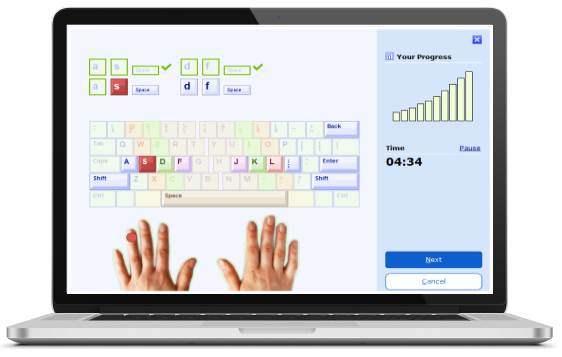
- Visual on-screen keyboard: A color-coded keyboard shows you which finger to use for each key.
- Progress tracking: The software tracks your speed (words per minute) and accuracy (error rate).
- Free of charge: No cost, no trial period, no hidden fees.
Because the software is older (version 1.0), its interface is very basic—don’t expect modern graphics or gamification. However, what it lacks in visual polish, it makes up for in focused, effective teaching. It is strictly a utility, not a game.
Main Features with Detailed Descriptions
1. Home Row First: Proper Finger Placement
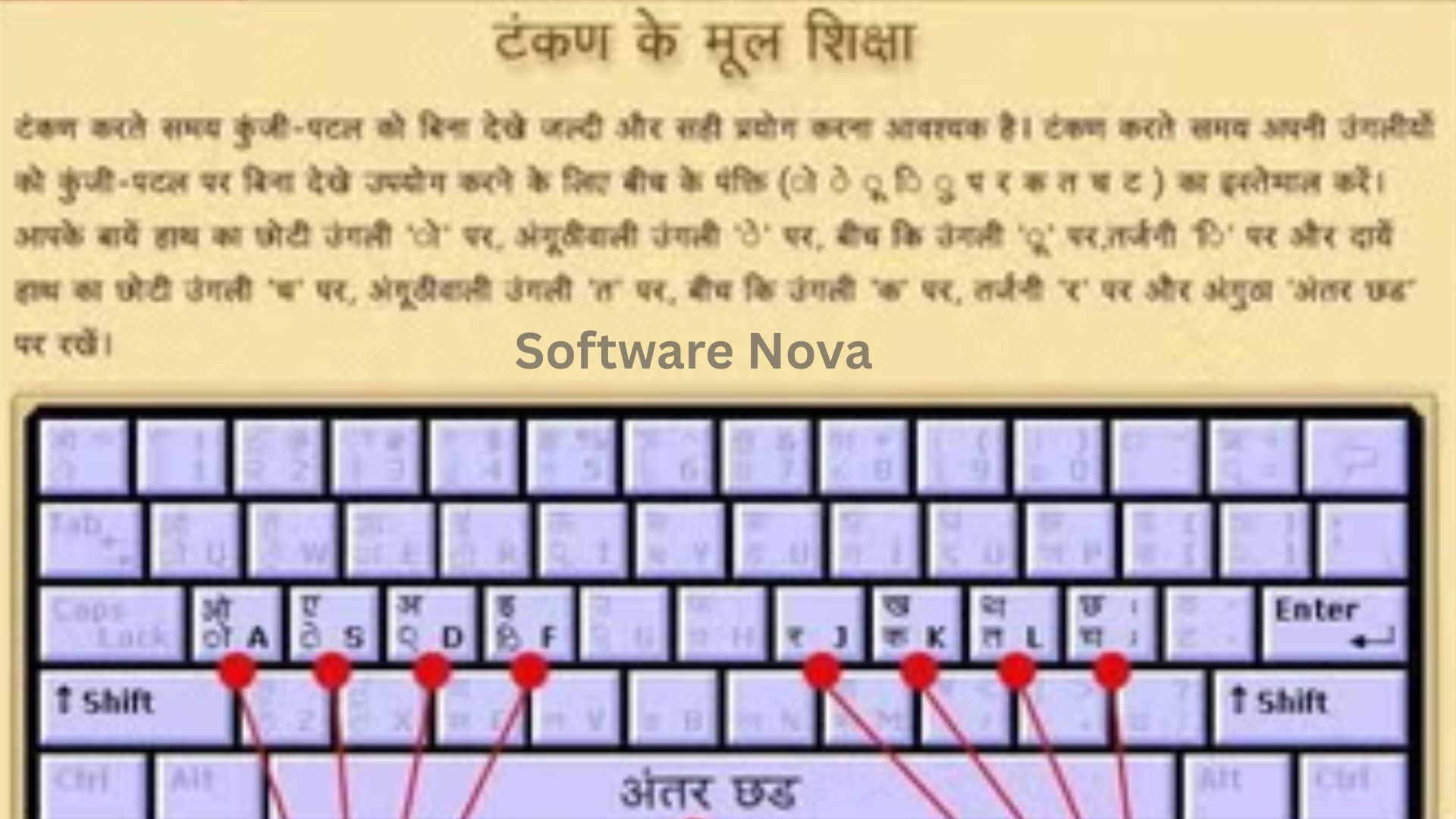
Like all good typing tutors, Aasaan starts with the home row (ASDF for the left hand, JKL; for the right hand in English mode). In Hindi mode, it starts with the corresponding home row keys on the chosen keyboard layout.
The software uses a color-coded virtual keyboard displayed on screen. Each finger is assigned a specific color. For example, the left index finger (red) covers keys like F, G, V, and B in English mode, and their Hindi equivalents. When a lesson asks you to type a letter, the on-screen keyboard highlights the key and shows which finger should press it. This visual reinforcement builds correct muscle memory from day one.
2. Dual Language Support (English and Hindi)
Unlike most typing tutors that are English-only, Aasaan is fully bilingual. At the start of the program, you choose your mode:
- English Mode: Uses the standard QWERTY layout. Lessons focus on English words, sentences, and common punctuation. This is ideal for anyone who needs to type emails, documents, or code.
- Hindi Mode: Uses your selected Hindi keyboard layout (Mangal/Inscript or Krutidev). Lessons display Hindi characters (devanagari script). You type the Hindi characters using the corresponding keys.
This dual mode means you do not need to install two separate typing tutors. You can switch between languages as your skills improve.
3. Support for Two Hindi Keyboard Layouts
Hindi typing in India has historically used two competing keyboard layouts. Aasaan supports both:
A. Mangal / Inscript Layout (Standard)
- This is the government-mandated standard for Hindi typing. It is used in many competitive exams (SSC, Bank PO, UPSC) that include a typing test.
- It follows a logical phonetic layout but requires practice to memorize the positions of vowels and modifiers.
- Recommended for students and job seekers preparing for government exams.
B. Krutidev Layout (Legacy / Popular)
- Krutidev is a non-standard but very popular font-based layout, especially in older publishing houses, newspapers, and many North Indian offices.
- It is not phonetic; you must learn key positions by rote. However, many existing Hindi typists are already familiar with it.
- Recommended if you are joining a workplace that already uses Krutidev.
Having both layouts in one software is a major advantage. You do not need to buy or install a separate tutor if you switch jobs or exam requirements.
4. Graduated Lessons (Beginner to Advanced)
The software is organized into a series of lessons, each introducing a small set of new keys while reinforcing previously learned ones.
Beginner lessons: Focus on the home row. You repeat simple patterns like “a s d f” or “j k l ;” (in English) or their Hindi equivalents. The goal is 100% accuracy, not speed.
Intermediate lessons: Add the top row (q w e r t y) and bottom row (z x c v b). You type simple words and short phrases.
Advanced lessons: Introduce capital letters, punctuation, numbers, and special symbols. You type full sentences and paragraphs.
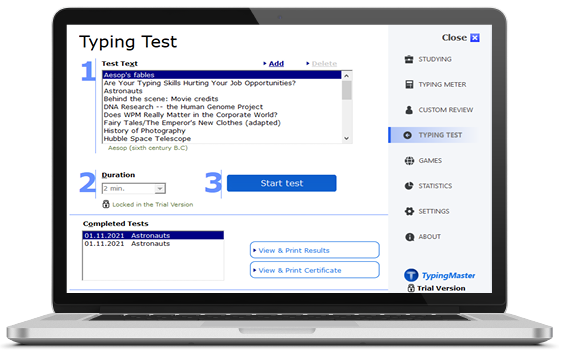
Speed tests: At the end of each section, a timed test measures your words per minute (WPM) and accuracy. You must meet a minimum threshold to advance.
5. Real-Time On-Screen Keyboard Guide
As you type, the on-screen keyboard highlights two things:
- The key you are supposed to press (in green).
- The finger you should use (via the color-coding system).
If you press the wrong key, the software often beeps (configurable) and shows the correct key again. This immediate feedback prevents you from practicing bad habits. Over time, you will stop looking at the on-screen guide as your fingers learn the positions automatically.
6. Speed and Accuracy Tracking
The software keeps statistics for each lesson and for each practice session:
- Gross Words Per Minute (WPM): Total keystrokes / 5 / minutes.
- Net WPM: Gross WPM minus errors.
- Accuracy percentage: (Correct keystrokes / Total keystrokes) * 100.
- Error log: Shows which keys you commonly mistype, so you can focus extra practice on weak areas.
You can review your progress over time. Seeing your WPM increase from 5 to 20 to 40 over a few weeks is highly motivating.
7. Adjustable Difficulty and Duration
You are not locked into a rigid schedule. In the settings, you can adjust:
- Lesson duration: Set a timer for 5, 10, 15, or 30 minutes per session.
- Error tolerance: Require 95%, 98%, or 100% accuracy before advancing.
- Sound effects: Enable or disable the error beep.
- Keyboard layout: Switch between English, Hindi (Mangal), or Hindi (Krutidev) at any time.
This flexibility makes the software suitable for both children (short attention spans) and adults (longer, focused practice).
System Requirements
Aasaan Hindi Typing Tutor is extremely lightweight. It will run on virtually any Windows computer made in the last 20 years.
| Requirement Category | Minimum Specification |
|---|---|
| Operating System | Windows 98, ME, NT, 2000, XP, 7, 8, 10 (32-bit or 64-bit) |
| Processor (CPU) | 300 MHz or faster (any) |
| Memory (RAM) | 64 MB (128 MB recommended) |
| Storage Space | 50 MB of free space |
| Display | 800×600 resolution or higher |
| Keyboard | Standard Windows keyboard (104 keys) |
| Language Support | Hindi fonts installed (Mangal or Krutidev) |
Note: For Windows 10, you may need to install Hindi language support via Settings > Time & Language > Language. The software itself will run fine.
How to Install Aasaan Hindi Typing Tutor (Step-by-Step)
Installing Aasaan is simple, but you need to pay attention to the optional components.
Step 1: Download the Installer
Go to your trusted download page (e.g., your website or CNET). Click the “Download Now” button. Save the file (usually Aasaan_Typing_Tutor.exe) to your “Downloads” folder.
Step 2: Scan the File (Recommended)
Right-click the downloaded file and select “Scan with Microsoft Defender” (or your antivirus). This confirms the file is safe.
Step 3: Run the Installer
Double-click the .exe file. If Windows SmartScreen appears, click “More info” and then “Run anyway.”
Step 4: Choose Language
The installer may ask for your preferred language (English or Hindi). Select it and click “OK.”
Step 5: Accept the License Agreement
Read the agreement (standard freeware terms). Click “I Agree” or “Next.”
Step 6: Choose Installation Folder
Keep the default folder (C:\Program Files\Aasaan Typing Tutor) or choose a different location. Click “Next.”
Step 7: Select Additional Tasks (Optional)
You may be asked to create a desktop shortcut. Check the box if desired. Click “Next.”
Step 8: Install
Click “Install.” The installation takes less than 30 seconds.
Step 9: Launch the Software
Once finished, check “Launch Aasaan Typing Tutor” and click “Finish.”
Step 10: Initial Configuration
The first time you run the software, it will ask:
- Select Mode: English or Hindi.
- Select Hindi Keyboard: Mangal/Inscript or Krutidev (if Hindi mode chosen).
- User Name: Enter your name for progress tracking.
Click “OK” to save.
Step 11: Adjust Settings (Optional)
Click the “Settings” button. Set your desired session duration, error tolerance, and sound preferences. Click “Save.”
Step 12: Start Lesson 1
Click “Start Lesson” or “Lesson 1” from the main menu. Place your fingers on the home row. Follow the on-screen prompts. Begin typing.
Pros and Cons Table
Aasaan is effective but dated. Here is an honest evaluation.
| Pros (Advantages) | Cons (Disadvantages) |
|---|---|
| Completely free: No cost, no trial, no ads. | Very old interface: Looks like Windows 98 software. |
| Teaches both English and Hindi: One software, two languages. | No gamification: No points, badges, or leaderboards. |
| Supports two Hindi layouts: Mangal/Inscript (government exams) and Krutidev (legacy). | No online progress sync: Progress is stored only on the local PC. |
| Works on old Windows versions: Runs on Windows 98 to Windows 10. | No touch-typing for symbols: Focuses mainly on letters and basic punctuation. |
| Real-time finger guide: Color-coded on-screen keyboard. | No video tutorials: Text-only instructions. |
| Tracks speed and accuracy: Know your WPM and error rate. | Limited to 10-hour promise: Some learners may need more time. |
| Portable (potentially): Can be copied to a USB drive (experimental). | No Windows 11 official support (though it may work in compatibility mode). |
Practical Use Cases and Benefits
Use Case 1: The Government Job Aspirant
Scenario: You are preparing for the SSC CHSL or IBPS Clerk exam, which includes a Hindi typing test (Mangal/Inscript layout). You currently type at 15 WPM. The requirement is 30 WPM.
Benefit: You install Aasaan, select Hindi Mode and Mangal/Inscript layout. You practice for 30 minutes daily for two weeks. The software tracks your progress. By the end of week two, you are consistently scoring 32 WPM with 95% accuracy. You pass the typing test.
Use Case 2: The Data Entry Operator
Scenario: You work in a small office that uses Krutidev font for all Hindi invoices and letters. You learned typing on English QWERTY and struggle with Krutidev key positions.
Benefit: You use Aasaan’s Krutidev lessons for one hour each evening for one week. The on-screen guide teaches you that “k” on QWERTY maps to “क” in Krutidev, “d” maps to “द,” etc. Your speed doubles. Your boss notices the improvement.
Use Case 3: The Parent Teaching a Child
Scenario: Your child (age 10) needs to learn computer typing for school projects. They are easily distracted by colorful games. You want a no-nonsense tool.
Benefit: You install Aasaan in English mode. You set the session duration to 10 minutes and error tolerance to 90%. Your child completes 2-3 short sessions per day. Within a month, they are touch-typing their homework without looking at the keyboard.
Use Case 4: The Adult Learner Who Never Typed Properly
Scenario: You have been using two fingers to type for 15 years. You are tired of making typos and looking down constantly. You want to finally learn proper form.
Benefit: Aasaan forces you to use all fingers from the first lesson. The color-coded guide prevents you from reverting to bad habits. After 10 hours of practice (spread over two weeks), you find yourself typing without looking. It feels strange at first, but then it feels natural.
Use Case 5: The Bilingual Professional
Scenario: You need to type emails in English and WhatsApp messages in Hindi (using a standard Hindi keyboard on your phone). You want your PC typing to match your phone speed.
Benefit: You alternate between English and Hindi modes in Aasaan. The software retrains your muscle memory for both layouts. Now you can switch between languages seamlessly, typing reports in English and notes in Hindi without slowing down.
Frequently Asked Questions (FAQ)
Q1: Is Aasaan Hindi Typing Tutor really free?
Yes. The software is completely free. There is no trial period, no “Pro” version, no subscription, and no hidden fees. You download it, install it, and use it forever without paying. The developer offers it as freeware to help people learn typing skills.
Q2: Will this software work on Windows 11?
Officially, the specifications list Windows 10 as the newest supported version. However, many users report that it works on Windows 11 if you run it in Windows 8 or Windows 10 compatibility mode. To do this:
- Right-click the shortcut or
.exefile. - Select Properties > Compatibility.
- Check “Run this program in compatibility mode for” and select “Windows 8” or “Windows 10.”
- Click OK and run the program.
If you encounter issues, consider using a virtual machine with Windows 10, or use a modern alternative like Typing Guru or Hindi Touch Typing Tutor (online).
Q3: Which Hindi keyboard layout should I choose?
It depends on your goal:
- Choose Mangal/Inscript if you are preparing for government exams (SSC, Bank, UPSC) or if you want the standard, universally supported layout. This is the future.
- Choose Krutidev if your current workplace or clients specifically use Krutidev fonts (common in some publishing houses, print media, and older offices). Note that Krutidev is not standard and files may not display correctly on computers without the font installed.
If you are unsure, start with Mangal/Inscript.
Q4: How long does it really take to learn touch typing?
The software claims 6-10 hours to learn the basics. This is realistic for learning the key positions and typing simple words without looking. However, to reach professional speeds (40-60 WPM), most learners need 20-30 hours of practice over several weeks. The 10-hour promise is for the foundation, not for mastery. Be patient and practice consistently (20-30 minutes daily).
Q5: Can I use Aasaan to learn English typing only?
Yes. At the initial configuration, simply select “English Mode.” The software will then function as a standard English QWERTY typing tutor. All lessons, exercises, and speed tests will be in English. You do not need to install a separate typing tutor for English.
Q6: Why does the software beep when I make a mistake?
The beep is a configurable error sound. It provides immediate auditory feedback that you pressed the wrong key. Some learners find it helpful; others find it annoying. To disable it:
- Open Aasaan.
- Click the “Settings” button.
- Uncheck “Play error sound” or similar.
- Click “Save.”
The software will no longer beep on mistakes, but it will still show the correct key on the screen.
Q7: My Hindi characters show up as boxes or question marks. What is wrong?
Your Windows system is missing the required Hindi fonts. To fix this:
- Go to Settings > Time & Language > Language (Windows 10/11).
- Click “Add a language.” Search for “Hindi.”
- Install the Hindi language pack. This will install the Mangal font and other necessary components.
- If using Krutidev, you need to download and install the Krutidev font separately (search for “Krutidev font download” from a trusted source). Right-click the font file and select “Install.”
- Restart Aasaan.
Q8: Can I practice specific keys that I find difficult?
Yes. The software includes a “Practice” or “Drill” mode (depending on version). You can select a specific row (home row, top row, bottom row) or even a single key (e.g., the “औ” character in Hindi). The software will generate exercises focusing only on those weak keys. This is much more efficient than repeating the entire lesson.
Q9: Does Aasaan work on a laptop keyboard (with smaller keys)?
Yes. The software works on any standard Windows keyboard, including laptop keyboards. The only difference is that laptop keys are shallower and closer together. Your fingers will adapt. The on-screen keyboard in Aasaan shows a standard full-size layout, but the finger-to-key assignments remain the same.
Q10: Is there a mobile version for Android or iPhone?
No. Aasaan is strictly a Windows desktop application. It does not have an Android, iPhone, or web version. To practice typing on a mobile device, you would need a different app (e.g., “Typing Master” or “Hindi Typing Keyboard” from the app store). However, learning touch typing on a touchscreen keyboard is very different from a physical keyboard, so it is not recommended.
Conclusion
Aasaan Hindi Typing Tutor is a no-frills, effective, and free solution for anyone who wants to learn touch typing in English or Hindi. It will not win any awards for graphic design. The interface looks like it was built for Windows 98, and it lacks the gamification of modern learning apps. But here is the thing: typing is a physical skill, not a game. The best way to learn is through focused, repetitive practice with immediate feedback. That is exactly what Aasaan provides.
For Hindi speakers, the support for both Mangal/Inscript (for government exams) and Krutidev (for legacy systems) in a single free software is rare and valuable. For English learners, the same software serves as a solid QWERTY tutor. The promise of learning the basics in 6-10 hours is realistic for motivated learners.
The software’s age is both a weakness and a strength. It is weak because it feels dated. It is strong because it runs on literally any Windows PC from the last two decades, including old computers in schools, libraries, and government offices that cannot run modern software.
If you are serious about improving your typing speed—for a job, an exam, or just personal productivity—install Aasaan today. Set aside 20 minutes each day. Follow the lessons in order. Do not look at your hands. Trust the process. In two weeks, you will be shocked at how much faster and more accurate you have become. That is the promise of touch typing. Aasaan just makes it easy.