
OpenGL Extensions Viewer – Complete GPU Diagnostic Guide
Have you ever tried to run a new game or a 3D modeling application only to see an error message about “missing OpenGL extensions” or “unsupported graphics features”? You are not alone. Modern software relies heavily on your graphics card’s ability to support specific versions of OpenGL, Vulkan, and DirectX. But how do you actually know what your GPU is capable of?
That is where OpenGL Extensions Viewer comes in. This free diagnostic utility scans your graphics hardware and drivers, then reports back exactly what your system supports. It tells you your OpenGL version, lists every single extension available, checks compatibility with Vulkan and DirectX, and even runs real-time rendering tests to verify shader behavior.
Whether you are a game developer testing compatibility, a 3D artist ensuring your workstation meets software requirements, or just a curious gamer who wants to know what their GPU can do, OpenGL Extensions Viewer provides the answers in a clean, organized interface. In this guide, I will walk you through every feature, explain how to interpret the results, and show you why this tool is essential for anyone working with graphics-intensive applications.
Software Overview
OpenGL Extensions Viewer (also known as GLview) is a free diagnostic utility for Windows that provides detailed information about your system’s OpenGL implementation. Developed by Realtech VR, it has been a trusted tool for graphics professionals, game developers, and hardware enthusiasts for many years.
At its core, the software does three things:
- Reports OpenGL capabilities: It displays your GPU’s OpenGL version, vendor string, renderer information, and a complete categorized list of supported extensions.
- Checks other graphics APIs: It also reports on Vulkan and DirectX support, giving you a complete picture of your graphics hardware.
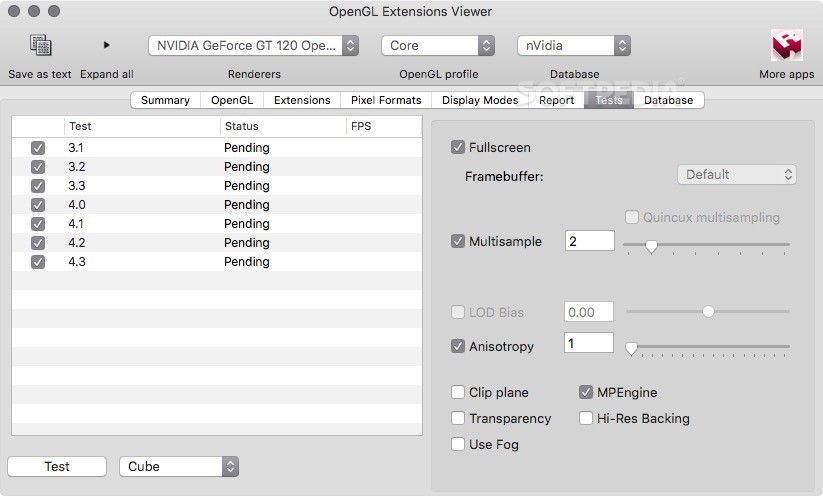
- Validates functionality with tests: Built-in rendering previews let you see how your hardware handles shaders, tessellation, geometry shaders, and texture mapping in real time.
The tool is lightweight (under 10 MB), supports all modern Windows versions (from XP to 11), and requires no additional dependencies. It is not a benchmarking tool for comparing frame rates across games, but rather a compliance and capability validator—it tells you what your hardware can do, not how fast it does it.
OpenGL Extensions Viewer is widely used by developers to test driver behavior, by IT professionals to diagnose graphics issues, and by gamers to verify system requirements before purchasing new software.
Main Features
1. GPU Detection and OpenGL Version Reporting
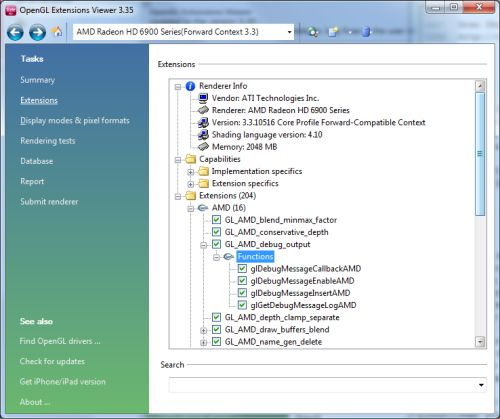
When you launch OpenGL Extensions Viewer, the first thing you see is a summary of your graphics hardware. This includes:
- OpenGL version: The highest version your GPU and driver support (e.g., OpenGL 4.6).
- Vendor: The manufacturer of your graphics card (NVIDIA, AMD, Intel, etc.).
- Renderer: The specific model of your GPU (e.g., “GeForce RTX 3060” or “Intel UHD Graphics 620”).
- Driver version: The currently installed graphics driver version.
This information alone is invaluable. Many software applications list a minimum OpenGL version requirement (e.g., “OpenGL 3.3 or higher”). OpenGL Extensions Viewer tells you immediately if your system meets that requirement.
2. Complete Categorized Extension List
OpenGL extensions are optional features that GPU vendors can add beyond the core OpenGL specification. Thousands of extensions exist, and they control everything from advanced shading techniques to texture compression formats.
OpenGL Extensions Viewer lists all supported extensions in a categorized, searchable interface. Categories include:
- Core extensions (required for basic functionality)
- ARB extensions (approved by the OpenGL Architecture Review Board)
- EXT extensions (vendor-developed, widely supported)
- NV/AMD/INTEL extensions (vendor-specific features)
Each extension entry includes a direct link to its online specification. This is a developer-friendly feature: click the link, and your browser opens the official documentation describing what the extension does, its parameters, and usage examples.
3. Real-Time Shader Rendering Tests
A unique feature of OpenGL Extensions Viewer is its ability to visually validate shader behavior. The software includes several interactive rendering tests:
- Tessellation preview: Shows how your GPU handles subdivision of 3D surfaces (important for modern games and CAD).
- Geometry shader test: Validates the ability to generate new geometry programmatically.
- Texture mapping preview: Displays a textured 3D object to verify texture support and filtering.
- Fragment shader test: Checks pixel-level processing capabilities.
These tests are not just pass/fail—they are visual. You can see the rendered output and observe any graphical artifacts, missing textures, or performance issues. This helps identify driver bugs or hardware limitations that a simple text report might miss.
4. Vulkan and DirectX Information
OpenGL is not the only graphics API that matters. Modern applications increasingly use Vulkan (for low-overhead, high-performance rendering) and DirectX (common in Windows games). OpenGL Extensions Viewer includes tabs that report:
- Vulkan support: Available version, instance extensions, and device properties.
- DirectX support: Detected Direct3D feature levels (e.g., DirectX 12 Ultimate).
This makes the tool a one-stop dashboard for your entire graphics stack. Instead of running three separate diagnostic utilities, you get everything in one place.
5. Performance Evaluation (Benchmarking)
While OpenGL Extensions Viewer is not a full-featured benchmarking suite, it does include basic performance evaluation options. These tests measure:
- Fill rate (how many pixels your GPU can render per second).
- Triangle throughput (geometry processing speed).
- Shader compilation performance (time to compile and run simple shaders).
Results can be exported to a text file and compared across different driver versions or hardware configurations. This is useful for developers who need to ensure a driver update did not degrade performance on specific OpenGL calls.
6. Core and Compatibility Context Detection
OpenGL supports different “context profiles”:
- Core profile: Only includes modern OpenGL features (removes deprecated functionality).
- Compatibility profile: Includes everything, including old legacy features.
OpenGL Extensions Viewer identifies which profiles your driver supports. This matters because some applications require a specific profile. For example, a game written with modern OpenGL 4.6 core profile may fail to run if your driver only exposes a compatibility profile (or vice versa, depending on implementation).
7. Real-Time Context Switching
Advanced users can use the tool to test how their GPU handles different rendering contexts. You can request a specific OpenGL version and profile, and the software will attempt to create that context. This simulates what happens when an application requests, for example, “OpenGL 4.5 core profile with debug output enabled.”
If the context creation fails, OpenGL Extensions Viewer reports the error. This helps developers debug why their application might be failing on certain machines.
8. Extension Search and Filtering
With hundreds or thousands of extensions, finding a specific one can be like finding a needle in a haystack. OpenGL Extensions Viewer includes a search box and filtering options. You can:
- Search by extension name (e.g., “GL_ARB_tessellation_shader”).
- Filter by category (Core, ARB, EXT, vendor-specific).
- Show only unsupported extensions (to see what your GPU is missing).
This is a massive time-saver when verifying compatibility for a specific software package.
9. Export and Reporting
You can export the entire report as a text file or HTML document. The exported file includes:
- System information (OS, CPU, RAM).
- OpenGL version and renderer details.
- Complete list of supported extensions.
- Vulkan and DirectX support data.
- Benchmark results (if run).
This is useful for:
- Sending a diagnostic report to technical support.
- Documenting hardware capabilities for compliance.
- Comparing two different systems side by side.
10. Automatic Vendor Database Updates
The software includes a vendor database that maps PCI vendor IDs to human-readable names (e.g., “0x10DE” to “NVIDIA Corporation”). This database can be updated automatically, ensuring that new or obscure graphics hardware is correctly identified.
System Requirements
| Component | Minimum Requirement |
|---|---|
| Operating System | Windows 11, 10, 8, 7, Vista, or XP (32-bit and 64-bit) |
| Processor | 1.0 GHz or faster (any modern CPU) |
| RAM | 512 MB (1 GB recommended for rendering tests) |
| Hard Disk Space | 50 MB free space |
| Graphics Hardware | Any GPU with OpenGL 1.1 or higher (required to run the tool itself) |
| Additional Requirements | None – standalone installer, no .NET or Java required |
| Internet | Only needed for automatic database updates and viewing extension specifications online |
Installation Steps (Numbered Format)
Follow these steps to install OpenGL Extensions Viewer on your Windows PC:
Step 1: Download the Installer
- Go to a trusted source (CNET Download or the developer’s official website at realtech-vr.com).
- Download the latest version (e.g.,
OpenGL_Extensions_Viewer_v6.4.4.exe).
Step 2: Run the Installer
- Locate the downloaded file in your Downloads folder.
- Double-click the installer to launch it.
- If Windows SmartScreen appears, click “More info” then “Run anyway” (the software is safe and widely used).
Step 3: Choose Language
- The installer will prompt you to select a language.
- Choose English (or your preferred language) and click OK.
Step 4: Accept License Agreement
- Read the End User License Agreement (standard freeware terms).
- Click “I accept the agreement” then click Next.
Step 5: Select Destination Location (Optional)
- The default installation path is
C:\Program Files (x86)\OpenGL Extensions Viewer. - To change it, click Browse and select another folder.
- Click Next.
Step 6: Select Start Menu Folder
- Choose where the installer creates shortcuts (default is “OpenGL Extensions Viewer”).
- Click Next.
Step 7: Select Additional Tasks
- Create a desktop icon: Check this box if you want a shortcut on your desktop.
- Create a quick launch icon: Optional (deprecated on Windows 10/11, but harmless).
- Click Next.
Step 8: Ready to Install
- Review your choices. Click Install to begin.
- Wait for the progress bar to complete (usually 10-20 seconds).
Step 9: Complete Installation
- Click Finish.
- Leave the checkbox “Launch OpenGL Extensions Viewer” checked if you want to start the software immediately.
Step 10: First Launch
- The software will open and automatically detect your GPU.
- It may ask to update the vendor database – click Yes (requires internet).
- The main window will display your OpenGL version and renderer information.
Step 11: Optional – Run Rendering Tests
- Click the “Tests” tab to access shader previews and performance evaluations.
- Follow the on-screen prompts to run each test.
You are now ready to explore your GPU’s capabilities.
Pros and Cons Table
| Pros | Cons |
|---|---|
| ✅ Completely free – no ads, no paywalls | ❌ Not portable – requires installation (no standalone .exe) |
| ✅ Detailed OpenGL version and extension reporting | ❌ No editing tools or optimization wizards (as noted in the bottom line) |
| ✅ Supports Vulkan and DirectX information | ❌ Benchmarking is basic – not a replacement for full GPU benchmarks |
| ✅ Real-time shader rendering tests (tessellation, geometry, texture) | ❌ User interface is functional but dated |
| ✅ Direct links to extension specifications | ❌ Does not test OpenGL ES (mobile/embedded) |
| ✅ Export reports as text or HTML | ❌ Some users may find the technical detail overwhelming |
| ✅ Works on Windows XP through Windows 11 | ❌ No built-in help system; relies on external documentation |
| ✅ Very lightweight (under 20 MB installed) | ❌ Rendering tests require a GPU with at least OpenGL 3.0 (older hardware may not support all tests) |
| ✅ Automatic vendor database updates | ❌ No macOS or Linux version (Windows only) |
| ✅ Useful for developers, IT pros, and gamers | ❌ No real-time performance overlay for games |
Practical Use Cases and Benefits
1. Game Developers Testing Compatibility
You have just finished building a game that uses OpenGL 4.5 tessellation shaders. Before release, you need to test it on different hardware configurations. OpenGL Extensions Viewer quickly tells you which GPUs and drivers support the required extensions, allowing you to create a supported hardware list for your store page. Benefit: Avoids customer support issues from users with incompatible hardware.
2. IT Professionals Diagnosing Graphics Issues
A user reports that a CAD application crashes on launch, but it works on other identical workstations. You run OpenGL Extensions Viewer on the problematic machine and discover that the OpenGL version is 1.4 (instead of the required 3.3). The cause: a missing or corrupted graphics driver. Benefit: Diagnoses the root cause in under one minute.
3. 3D Artists Checking Workstation Readiness
You are about to install a new 3D modeling and rendering suite. The system requirements state: “OpenGL 4.6 with support for GL_ARB_bindless_texture.” You run OpenGL Extensions Viewer, search for that extension, and confirm it is supported. Benefit: Confidence that your expensive software will run correctly before installation.
4. Gamers Verifying System Requirements
A new game you want to buy requires “OpenGL 4.5 with geometry shader support.” Your graphics card is a few years old. OpenGL Extensions Viewer shows you exactly what your GPU supports, including whether geometry shaders are present. Benefit: Avoids wasted money on a game you cannot run.
5. Hardware Reviewers Comparing GPUs
You are writing a review comparing two graphics cards. OpenGL Extensions Viewer provides a standardized report of OpenGL extensions, Vulkan support, and basic performance metrics. Export both reports and highlight the differences. Benefit: Objective, reproducible data for your review.
6. Students Learning Computer Graphics
You are taking a university course on real-time 3D graphics. The professor asks you to verify which OpenGL features your home computer supports. Instead of guessing, you run OpenGL Extensions Viewer and generate a complete report. Benefit: Academic assignment completed quickly and accurately.
7. Driver Update Validation
A new graphics driver is released. You install it, but some OpenGL applications start showing artifacts. Run OpenGL Extensions Viewer’s rendering tests before and after the update. Compare the visual output—any new artifacts or missing textures indicate a driver regression. Benefit: Identifies driver problems before they affect your work.
FAQs (Frequently Asked Questions)
1. Is OpenGL Extensions Viewer safe to use?
Yes. OpenGL Extensions Viewer has been a trusted tool in the graphics community for over 15 years. It does not contain malware, adware, or any form of bundled software. It only reads information from your GPU and drivers; it does not modify any system files or registry entries beyond its own installation. Always download from the official website or reputable sources like CNET Download to avoid fake versions.
2. What is the difference between OpenGL Extensions Viewer and GPU-Z?
- OpenGL Extensions Viewer focuses specifically on OpenGL (plus Vulkan and DirectX support). It includes rendering tests that actually validate feature support, not just report what the driver claims.
- GPU-Z is a broader GPU information tool that reports clock speeds, temperatures, memory bandwidth, and sensor readings. It does not include interactive rendering tests.
For OpenGL development or compatibility checking, OpenGL Extensions Viewer is the better choice. For overclocking and sensor monitoring, use GPU-Z.
3. Why does the software show a lower OpenGL version than I expected?
There are two common reasons:
- Your graphics driver is outdated: Download the latest driver from NVIDIA, AMD, or Intel’s website.
- Your GPU hardware is older: Some GPUs physically do not support newer OpenGL versions. For example, Intel HD Graphics 3000 only supports OpenGL 3.1. OpenGL Extensions Viewer cannot add features your hardware lacks.
4. How do I run the rendering tests?
- Open OpenGL Extensions Viewer.
- Click the “Tests” tab at the top of the window.
- You will see a list of available tests: Tessellation, Geometry Shader, Texture Mapping, etc.
- Double-click a test name to launch it.
- A new window will open showing a rotating 3D object with the selected shader applied.
- Observe the output for any visual artifacts or performance issues.
- Close the test window to return to the main interface.
Some tests may not be available if your GPU does not support the required OpenGL version.
5. Can I use OpenGL Extensions Viewer on a computer without administrator rights?
Yes, but with limitations. The installer requires administrator privileges to write to Program Files and the registry. If you cannot install software, look for a portable version (not officially provided by Realtech VR, but some third-party repacks exist). Alternatively, use the web-based alternative webglreport.com to test OpenGL support in your browser, though it is less comprehensive.
6. Does OpenGL Extensions Viewer work with integrated graphics (Intel UHD, Iris Xe)?
Absolutely. The tool works with any GPU that supports OpenGL, including integrated Intel graphics. In fact, Intel users often find the tool helpful because Intel drivers have historically had spotty extension support. Running OpenGL Extensions Viewer can confirm whether a specific extension is truly available or if you need to update your driver.
7. What does “context creation failed” mean?
When you try to run a test or request a specific OpenGL version, you might see an error message like “Failed to create OpenGL context.” This means either:
- Your GPU does not support the requested OpenGL version (e.g., requesting OpenGL 4.6 on a GPU that only supports 3.3).
- Your driver has a bug preventing context creation for that specific profile or version.
- Another application is holding an exclusive lock on the GPU (rare).
Solution: Try a lower OpenGL version or update your graphics driver.
8. Can I compare two different computers side by side?
Yes. Run OpenGL Extensions Viewer on both machines. On each, go to File > Export Report and save as HTML or text. Then open both reports in your browser or a text comparison tool (like WinMerge). You can compare OpenGL versions, supported extensions, and benchmark results manually.
9. Is there a command-line version for automated testing?
The standard version does not include command-line support. However, developers can use the Windows API to query OpenGL extensions programmatically (e.g., using wglGetExtensionsStringARB). OpenGL Extensions Viewer is intended for interactive use and manual reporting, not automated test suites.
10. The software crashed or froze during a test – what do I do?
Some older GPUs or buggy drivers may crash when running complex shader tests. To resolve:
- Update your graphics driver to the latest stable version.
- Run the test in windowed mode (not fullscreen) – lower the test window size in the options.
- Skip that specific test – not all features are required for your use case.
- Report the crash to the developer (Realtech VR) with your GPU model and driver version. Include the export report from the main view.
Conclusion
OpenGL Extensions Viewer is a focused, no-nonsense diagnostic tool that does exactly what it promises: it tells you what your graphics hardware and drivers are capable of. For developers, it is an essential part of the compatibility testing toolkit. For IT professionals, it is a quick way to diagnose driver issues. For gamers and 3D artists, it provides confidence before installing demanding software.
The software has clear limitations: it is not portable, offers no editing or optimization features, and its benchmarking is rudimentary. But those limitations are intentional. OpenGL Extensions Viewer does not try to be everything to everyone. Instead, it excels at its core mission—providing accurate, detailed, verifiable information about OpenGL (and Vulkan/DirectX) support.
If you work with any graphics-intensive software on Windows—whether as a developer, artist, IT admin, or power user—keep OpenGL Extensions Viewer in your toolkit. It is free, lightweight, and reliable. When you need to know exactly what your GPU can do, there is no faster or more trustworthy answer.
