X-Mouse Button Control- Mouse Customization Tool for Windows
Meta Description: Discover X-Mouse Button Control—a free tool to remap mouse buttons, create app-specific profiles, and boost productivity on Windows 10/11.
Introduction
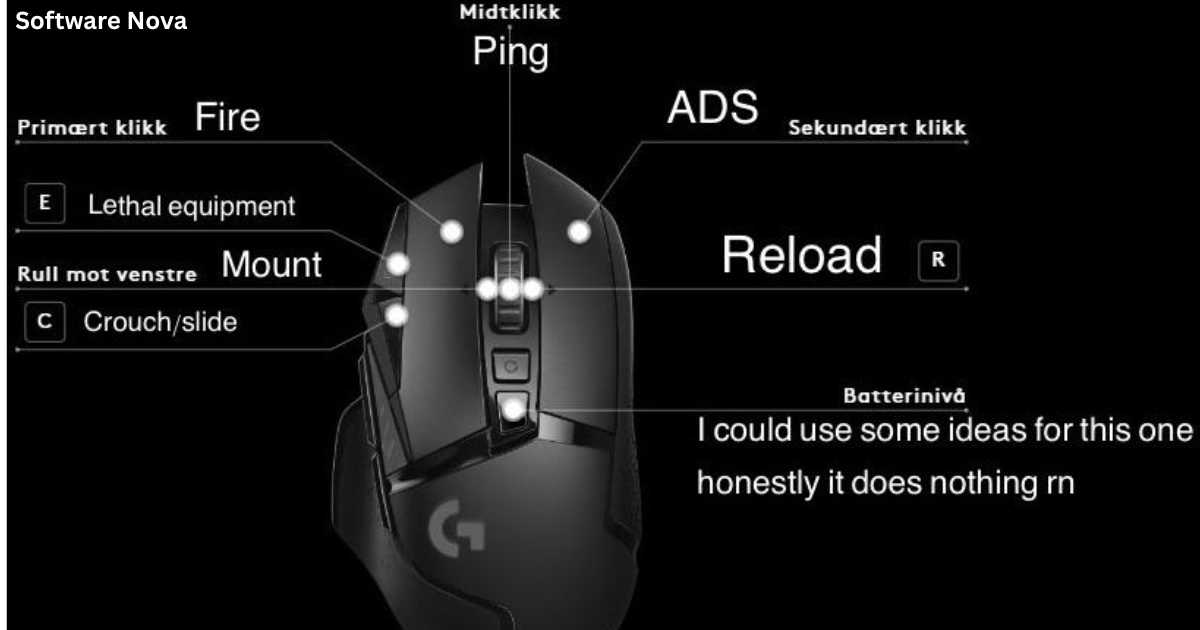
Our computer mouse is one of the most essential tools we use daily. Yet, most of us only use a fraction of its potential. The left and right buttons handle the basics, but what about the side buttons, the scroll wheel, or the middle button? For gamers, designers, and power users, the ability to customize these buttons can dramatically improve efficiency and workflow.
Enter X-Mouse Button Control (XMBC) . This free, lightweight utility for Windows (version 2.20.5) empowers you to take complete control of your mouse. It allows you to remap buttons, create application-specific profiles, and assign complex functions to simple clicks. Whether you want to turn a side button into a shortcut key or create a gaming profile with advanced macros, XMBC is the tool for the job.
In this comprehensive guide, we’ll explore the features, benefits, and potential drawbacks of X-Mouse Button Control, providing you with everything you need to know to supercharge your mouse.
What is X-Mouse Button Control?
X-Mouse Button Control is a free software application for Windows that allows you to customize the behavior of your mouse buttons. It works by intercepting the signals sent by your mouse and redirecting them to perform different actions based on the rules you set.
Unlike manufacturer-specific software (like Logitech Options or Razer Synapse), XMBC is hardware-agnostic. It works with nearly any mouse that uses standard Windows drivers, making it an incredibly versatile tool. You can transform a cheap, basic office mouse into a productivity powerhouse or create a highly specialized control scheme for your favorite games.
Key Features of X-Mouse Button Control
1. Extensive Button Remapping
XMBC offers a vast array of functions that can be assigned to any mouse button. Beyond simple clicks, you can map buttons to:
- Standard Actions: Copy, Cut, Paste, Undo.
- Navigation: Back, Forward, Scroll Up/Down.
- Media Controls: Play/Pause, Volume Up/Down, Next/Previous Track.
- System Functions: Open Task Manager, Lock Workstation, Show Desktop.
- Custom Keystrokes: Simulate any keyboard combination (e.g., Ctrl+C, Alt+Tab).
- Launch Applications: Open a specific program with a single click.
- Capture Screenshots: Take a screenshot of the entire screen or a selected region.
- Timed Button Actions: Perform different actions based on whether you click, double-click, or hold a button.
2. Application-Specific Profiles
This is one of XMBC’s most powerful features. You can create different button mappings for different programs. For example:
- Web Browser: Map the side buttons to Back and Forward.
- Music Player: Map side buttons to Previous and Next Track.
- Adobe Photoshop: Map buttons to Zoom In/Out or specific tools.
- Game: Map buttons to Reload, Switch Weapons, or even complex macros.
The software automatically switches profiles when you switch between applications, ensuring your mouse is always optimized for the task at hand.
3. Layered Configuration
XMBC supports multiple layers of button configurations, allowing for even more complex setups. This is useful for creating “shift” layers—similar to a keyboard modifier key—where holding one button temporarily changes the function of all others.
4. Support for Windows Features
XMBC is up-to-date with modern Windows features. It includes support for virtual desktops in Windows 10/11, allowing you to map mouse buttons to switch between desktops.
5. Lightweight and Efficient
The program is remarkably small and uses very few system resources. It runs quietly in the system tray, working in the background without slowing down your computer. The installer is smart enough to automatically detect if you need a 32-bit or 64-bit version.
Who Benefits from X-Mouse Button Control?
- Gamers: Gain a competitive edge by mapping crucial in-game actions to accessible mouse buttons.
- Graphic Designers & Video Editors: Program buttons for frequently used tools and shortcuts to speed up your workflow.
- Office Workers & Students: Use mouse buttons for Copy/Paste, Undo, or application switching to reduce keyboard reliance.
- AutoCAD/Drafting Professionals: As one user noted, mapping the side buttons to “Delete” and “Escape” can be a huge time-saver.
- Accessibility Users: Those with limited mobility can customize their mouse to perform complex actions with simpler clicks.
- Anyone: Anyone who wants to get more out of their existing hardware.
Getting Started: How to Use X-Mouse Button Control
Step 1: Download and Install
Download the software from a trusted source. The installation is straightforward. The installer will automatically detect if you are running a 32-bit or 64-bit system and will even close an existing instance of the program if it is already running.
Step 2: Launch the Interface
After installation, launch the program. It will appear as an icon in your system tray. Click on the icon to open the main configuration window.
Step 3: Configure Buttons for Default Profile
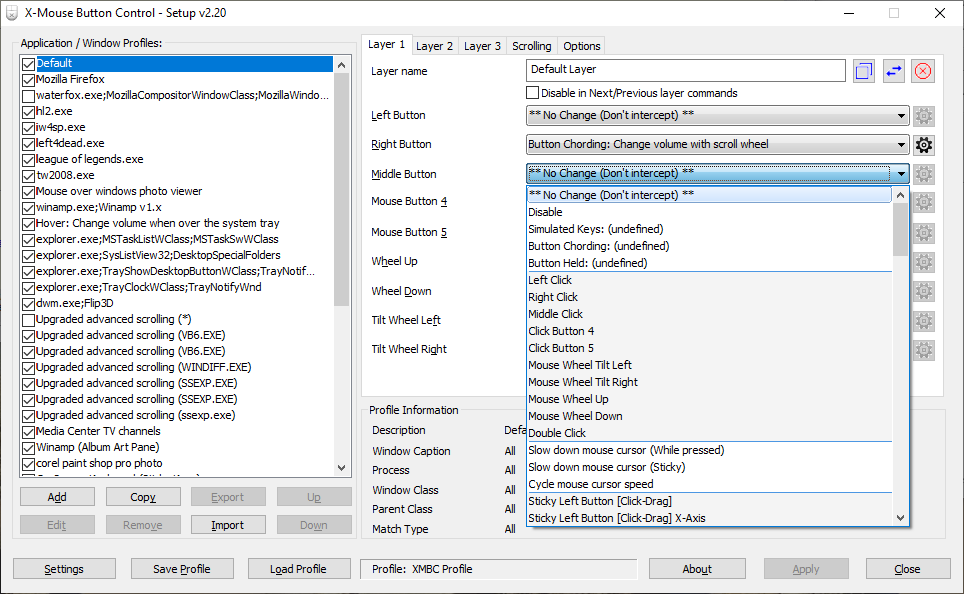
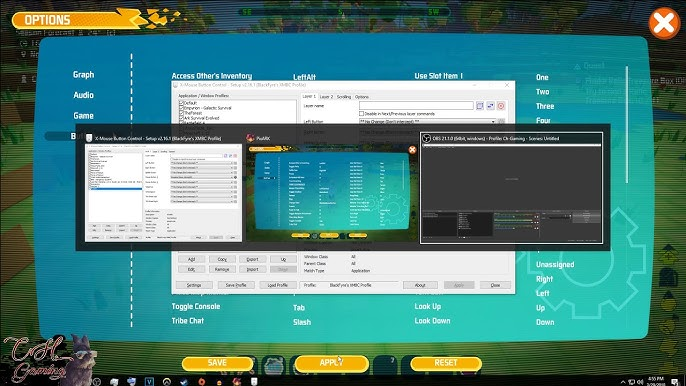
The default profile applies to all applications unless a specific profile is active. In the main window, you will see a dropdown list for each of your mouse buttons (up to five buttons are supported, as it relies on standard Windows drivers). For each button, you can:
- Select the button you want to customize.
- From the dropdown menu, choose the function you want to assign.
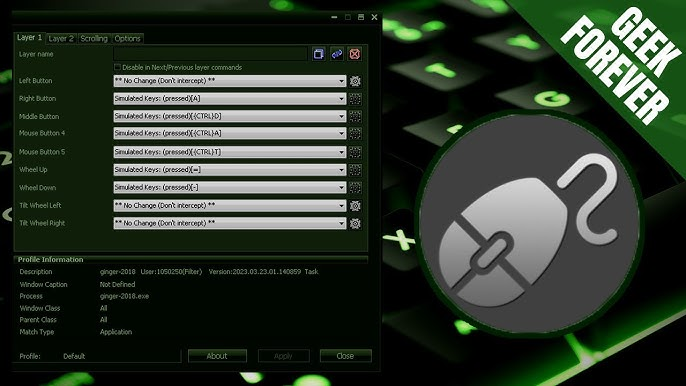
- For “Simulated Keys” or “Custom Keystrokes,” you can enter the specific combination you want the button to press.
Step 4: Create Application-Specific Profiles
- Click on “New” to create a new profile.
- You will be prompted to select an application executable (.exe file) from your computer.
- Once selected, you can configure the buttons for this specific application. The new profile will appear in the list, and you can easily switch between them.
Step 5: Save and Test
Click “Apply” or “OK” to save your settings. Your new button mappings will now be active. Test them out in your applications to ensure they work as expected. You can always return to the interface to make adjustments.
Pros and Cons
Pros
- Free: A powerful utility that doesn’t cost a dime.
- Highly Customizable: Offers an extensive list of functions for remapping.
- Application-Specific Profiles: This is a killer feature for gamers and professionals.
- Lightweight: Uses minimal system resources.
- Wide Compatibility: Works on a broad range of Windows versions and with almost any standard mouse.
Cons
- Relies on Standard Mouse Driver: This is its main limitation. It only supports up to five buttons, which is standard for most mice. It won’t work with the advanced features of high-end gaming mice (like many programmable buttons on MMO mice) that require their own proprietary drivers.
- Potential for Bugs: Some users have reported occasional bugs, particularly in certain applications like Microsoft Word.
- Installation of Adware (From Some Sources): A significant number of users reported that downloading the software from certain sites installed unwanted adware. This is a crucial warning: always download from the official developer’s website or a completely trusted source to avoid this issue.
Common Troubleshooting and Tips
If Your Mappings Aren’t Working in a Game
- Run as Administrator: Some games require XMBC to run with administrative privileges to intercept button presses.
- Disable In-Game Mouse Settings: Check the game’s settings to ensure it isn’t overriding your custom mappings.
If the Software Is Unstable
- Check for Updates: Ensure you are using the latest version, which usually focuses on bug fixes.
- Search the Forum: The XMBC community is active. The user guide and forums are excellent resources for troubleshooting.
Important Installation Warning
Be cautious about where you download the software. Several user reviews on CNET have complained about adware and bundled software. To avoid this, always download X-Mouse Button Control directly from the developer’s official website (Highresolution Enterprises). This is a lesson for any free software: official sources are always safer than third-party repositories, even reputable ones.
Frequently Asked Questions (FAQs)
1. What is X-Mouse Button Control used for?
Answer: X-Mouse Button Control is a free utility for Windows that lets you remap and customize the functions of your mouse buttons. It allows you to assign different actions to each button for different applications, enhancing productivity and gaming performance.
2. Is X-Mouse Button Control safe to download?
Answer: The software itself is safe, but you must be careful about the download source. Users have reported that downloading from some third-party sites installs unwanted adware. To stay safe, always download X-Mouse Button Control directly from the developer’s official website.
3. How do I create a profile for a specific game or application?
Answer: In the XMBC interface, click the “New” button and browse to the executable file (.exe) of the application you want to customize. Once the profile is created, you can configure the button mappings specifically for that application, and XMBC will automatically switch to it when the app is in focus.
4. Will X-Mouse Button Control work with my gaming mouse?
Answer: XMBC works with any mouse that uses the standard Windows mouse driver. This covers most basic and gaming mice. However, it only supports up to five buttons. For mice with many programmable buttons (like MMO mice), you’ll likely still need the manufacturer’s software to access those extra buttons.
5. Can I use X-Mouse Button Control to simulate keyboard shortcuts?
Answer: Yes, this is one of its most powerful features. You can use the “Simulated Keystrokes” function to map any keyboard combination (e.g., Ctrl+Shift+Esc for Task Manager, or Alt+F4) to a mouse button.
Conclusion
X-Mouse Button Control is an exceptional piece of software that delivers on its promise to give you complete control over your mouse. Its extensive list of remapping functions and the powerful ability to create application-specific profiles make it a standout tool for anyone who uses a Windows PC.
For gamers, it can provide a competitive edge. For professionals, it’s a productivity booster that can streamline repetitive tasks. And for everyday users, it transforms a basic mouse into a much more versatile and efficient tool.
However, the software’s legacy is somewhat tarnished by the widespread issue of adware from third-party download sites. This is a cautionary tale. The software itself is excellent, but users must be diligent about where they download it. Always choose the official source.
Overall, X-Mouse Button Control is a reliable, powerful, and free tool that has earned a dedicated community. It’s one of the first things many power users install on a new PC, and its longevity and positive reviews are a testament to its quality and usefulness.