Paragon Partition Manager Free 64-Bit – Safe Disk Management for Windows
You just bought a new solid-state drive (SSD) to speed up your aging computer. Or maybe your C: drive is completely full, while your D: drive has hundreds of gigabytes of empty space. Perhaps you want to install Linux alongside Windows for a dual-boot setup. In all these cases, you need to change your hard drive’s partition layout. Windows has basic built-in tools, but they are limited and risky. That is where Paragon Partition Manager Free Edition (64-bit) comes in.
Paragon Software Group has been making disk utilities for over 25 years. Their free edition of Partition Manager offers a professional-grade set of tools without the professional price tag. Unlike the Disk Management tool built into Windows, Paragon lets you resize, merge, move, and clone partitions without losing data. It also includes advanced features like converting between NTFS and HFS+ (for Mac compatibility) and undelete partitions you accidentally removed.
The software uses a wizard-driven interface that guides you step by step. Even if you have never touched a partition before, the clear instructions and preview feature prevent costly mistakes. Changes are not applied immediately. Instead, you queue up operations, review them, and then commit with a single click. This “safety first” approach is why millions of users have downloaded Paragon Partition Manager.
In this article, we will explore every feature of this free utility, walk through installation, and show you how to safely resize, clone, and manage your drives.
Software Overview
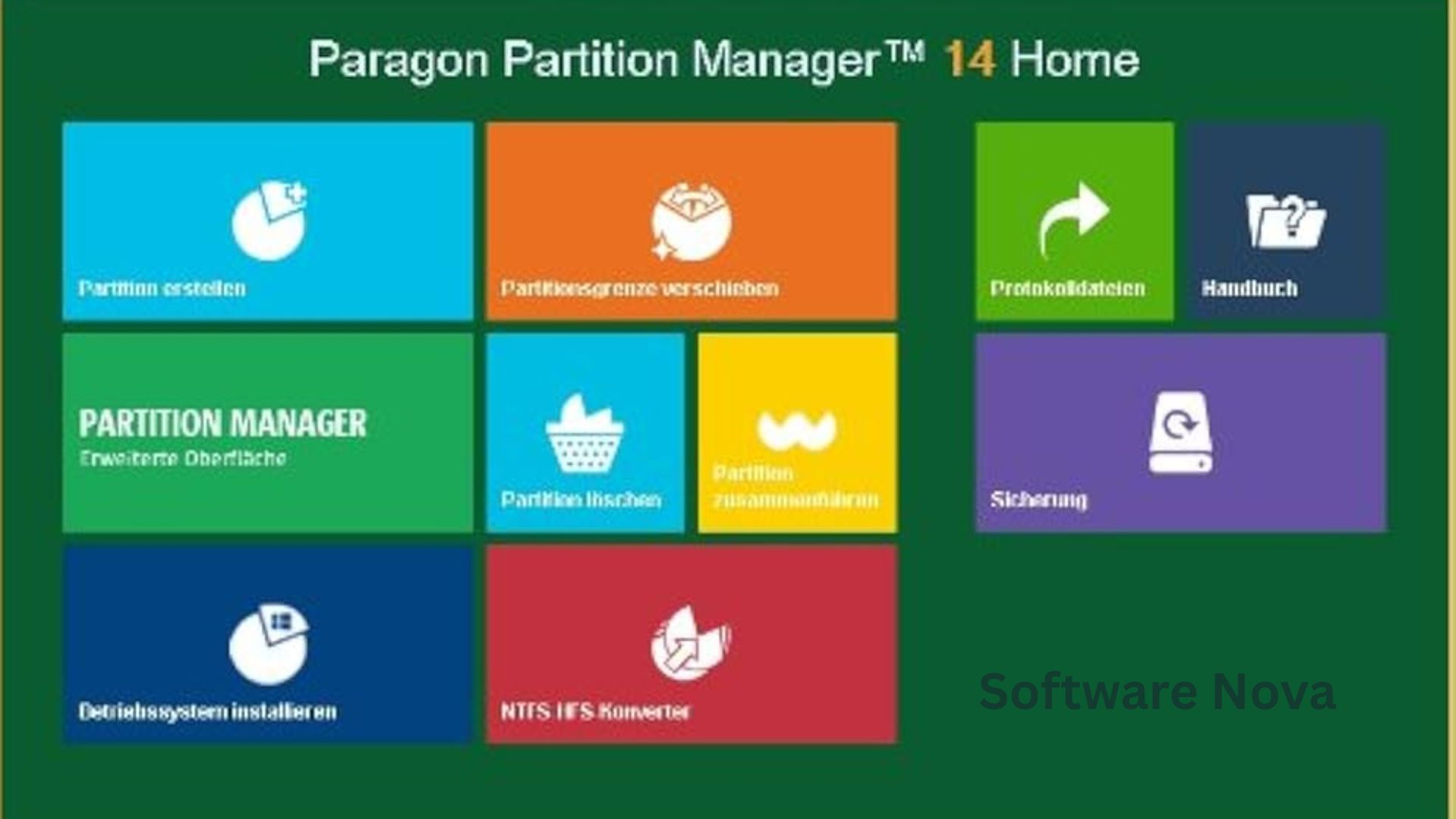
Paragon Partition Manager Free Edition (64-bit) is a free, feature-rich disk partitioning utility designed specifically for 64-bit versions of Windows. The current version is 17.9.1, and it supports Windows Vista, 7, 8, 10, and XP (though Windows 10 and 11 are the primary targets for modern users). Over 2.7 million downloads on CNET alone attest to its popularity.
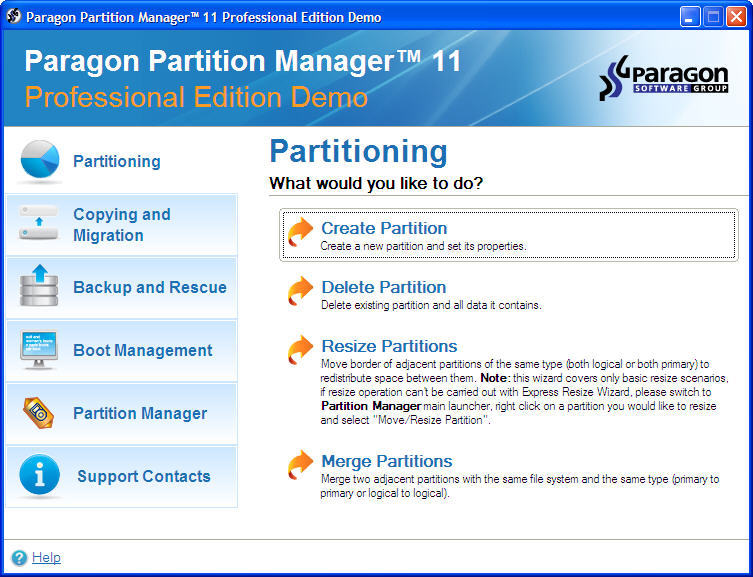
Unlike many “free” partition tools that show you advanced features but lock them behind a paywall, Paragon offers a genuinely useful set of free capabilities. You can create, format, delete, move, resize, merge, and hide partitions. You can also clone entire disks (useful for migrating to an SSD) and convert file systems between NTFS and HFS+ (for dual-boot with Mac).
The software presents a clear, graphical disk map at the top of the window. Each partition is shown as a colored block. You can click on any partition to see its details: file system, used space, free space, and label. The sidebar provides context-sensitive actions—right-click a partition and choose “Resize,” or click a disk and choose “Clone.”
One of the standout features is the “Undo/Redo” and “Apply” workflow. You can queue up multiple changes (e.g., shrink D:, expand C:, move a partition, then merge two others). Nothing is written to your disk until you click the “Apply” button. This gives you a chance to review the proposed changes and cancel if you made a mistake.
For system builders, IT professionals, and home users who regularly manage storage, Paragon Partition Manager Free Edition is a reliable, safe, and cost-effective alternative to paid competitors like EaseUS Partition Master or MiniTool Partition Wizard.
Main Features with Detailed Descriptions
1. Resize and Move Partitions Without Data Loss
This is the most requested partition management feature. Windows Disk Management can only shrink a partition from the end, and it often refuses to shrink if there are “immovable files” (like the page file or hibernation file).
Paragon Partition Manager uses a more intelligent algorithm. You can:
- Shrink a partition: Reduce its size, freeing up unallocated space.
- Extend a partition: Grow it into adjacent unallocated space.
- Move a partition: Change its physical location on the disk (e.g., to make space for expanding the C: drive).
The operation is non-destructive. Your files remain intact. Paragon moves data blocks sector-by-sector, ensuring nothing is lost. For large partitions (1 TB+), the process may take 30-60 minutes, but it runs in the background, and you can continue using your PC (though slower performance is expected).
2. Disk Cloning for SSD Migration
Upgrading from a slow mechanical hard drive to a fast SSD is one of the best upgrades you can make. But reinstalling Windows and all your applications takes hours. Paragon’s disk cloning wizard solves this.
You can clone an entire disk (including the operating system, bootloader, programs, and data) to a new drive. The wizard:
- Copies the source disk sector-by-sector.
- Automatically resizes partitions to fit the target disk if it has different capacity.
- Updates the bootloader so the new drive boots correctly.
- Offers options for “sector-by-sector” (exact copy) or “smart copy” (only used sectors, faster).
Even the free edition includes this feature, though some competing tools lock cloning behind a paid “Pro” version. Note that the free edition’s cloning may have speed limitations, and some user reviews indicate that advanced cloning options (like dynamic disk support) require the paid version.
3. Merge, Split, and Format Partitions
Beyond basic resize, Paragon lets you perform more complex operations:
- Merge partitions: Combine two adjacent partitions into one. For example, merge your D: and E: drives. All data from both partitions is preserved in a folder on the new merged partition.
- Split partition: Divide one partition into two. Specify the size of the new partition, and Paragon moves data accordingly.
- Format: Change the file system (NTFS, FAT32, exFAT, or even HFS+ for Mac). Warning: Formatting erases all data on the partition.
These operations are all queued and applied in a single batch, saving time.
4. Undelete Partitions and Surface Testing
Have you ever accidentally deleted the wrong partition? Or installed a new OS and lost access to an old data partition? Paragon includes an “Undelete Partition” wizard.
The software scans your disk for signatures of deleted partitions. It then presents a list of found partitions. You can preview the files inside before restoring. This feature has saved many users from data loss disasters.
Additionally, a surface test checks your hard drive for bad sectors. It reads every sector and reports any that are slow or unreadable. This is a good diagnostic tool to run before resizing or moving a partition, as bad sectors can cause operation failures.
5. NTFS to HFS+ Conversion (Dual-Boot with Mac)
This is a rare feature in free partition tools. If you dual-boot Windows and macOS (on a Hackintosh or a Mac with Boot Camp), you may need to share files between the two operating systems. Windows cannot natively write to HFS+ (Mac’s file system), and Macs cannot write to NTFS by default.
Paragon can convert a partition between NTFS and HFS+ without data loss. For example:
- Convert an external drive from NTFS to HFS+ so your Mac can write to it.
- Convert a Boot Camp partition from HFS+ to NTFS to improve Windows performance.
After conversion, both operating systems can read and write to the partition using third-party drivers (or Paragon’s own commercial products).
6. Hexadecimal Editor and Low-Level Tools
For advanced users, Paragon includes a hex editor for examining and modifying raw disk sectors. This is not for casual users—one wrong edit can corrupt your filesystem. However, it is invaluable for data recovery professionals or those troubleshooting disk-level corruption.
The hex editor lets you:
- View the boot sector, partition table, and file system structures.
- Manually repair damaged partition tables (if you know what you are doing).
- Search for specific byte patterns (e.g., to find lost file headers).
The editor works on entire disks, not just partitions, giving you sector-level access.
7. Preview Changes and Batch Scheduling
Before you commit to any changes, Paragon shows a “pending operations” list. You can see exactly what will happen:
- “Resize partition D: from 200 GB to 150 GB”
- “Move partition E: 50 GB to the right”
- “Format partition F: as NTFS”
You can remove individual operations or clear all. Only when you click “Apply” does the software start writing to the disk.
For recurring tasks (like weekly partition defragmentation or backup of partition tables), you can schedule operations using Windows Task Scheduler. Paragon provides command-line options (though the free edition’s scripting is limited compared to the paid version).
System Requirements
Paragon Partition Manager Free Edition is lightweight and runs on most Windows PCs.
| Requirement Category | Minimum Specification |
|---|---|
| Operating System | Windows Vista, 7, 8, 10, or 11 (64-bit only) |
| Processor (CPU) | 1.0 GHz or faster (any) |
| Memory (RAM) | 1 GB (2 GB recommended for large disk operations) |
| Storage Space | 500 MB of free space for installation |
| Disk Types | HDD, SSD, SSHD, external USB drives |
| File Systems | NTFS, FAT32, FAT16, exFAT, HFS+, Ext2/3/4 (read-only) |
| Additional | Administrator rights required |
*Note: This is the 64-bit version. It will not install on 32-bit Windows. If you have 32-bit Windows, download the 32-bit version from Paragon’s website.*
How to Install Paragon Partition Manager Free (Step-by-Step)
Installing the software is straightforward, but you must pay attention to optional components.
Step 1: Download the Installer
Go to your trusted download page (e.g., your website or CNET). Click the “Download Now” button. Save the file (e.g., Paragon_Partition_Manager_Free_x64.exe) to your “Downloads” folder.
Step 2: Scan the File (Recommended)
Right-click the downloaded file and select “Scan with Microsoft Defender” (or your antivirus). This ensures the file is safe.
Step 3: Run the Installer as Administrator
Right-click the .exe file and select “Run as Administrator.” This is required for the installer to access system components.
Step 4: Allow User Account Control
Windows may ask, “Do you want to allow this app to make changes?” Click “Yes.”
Step 5: Choose Installation Language
Select your preferred language (usually English). Click “OK.”
Step 6: Accept the License Agreement
Read the agreement (standard freeware terms). Check “I accept the agreement.” Click “Next.”
Step 7: Select Installation Type (Important)
Choose “Custom installation” (not “Typical”). This allows you to uncheck any optional components.
You will see a list of features. Uncheck anything you do not need, such as:
- Paragon Agent (background service for scheduled tasks)
- Desktop shortcut (optional)
- Context menu extension (adds Paragon options to right-click in File Explorer)
Leaving all options checked will install background services that run at startup. For most home users, you only need the main application. Click “Next.”
Step 8: Choose Installation Folder
Keep the default folder (C:\Program Files\Paragon Software\Partition Manager 17 Free). Click “Next.”
Step 9: Create Desktop Shortcut (Optional)
Check the box if you want a shortcut on your desktop. Click “Next.”
Step 10: Install
Click “Install.” The installation takes 1-2 minutes. You may see command prompt windows flash briefly.
Step 11: Launch the Software
Once finished, uncheck any “View Readme” options, check “Launch Paragon Partition Manager” and click “Finish.”
Step 12: Register (Free)
The first time you run the software, it will ask for a free registration. Click “Register” or “Activate Free License.” You will need to provide a name and email address (to receive a free license key via email). This is a one-time process. Paragon uses this to limit commercial use of the free edition.
Step 13: Initial Scan
After registration, the software will scan all connected drives. Wait 10-30 seconds. The main interface appears, showing your disk map.
Step 14: Create a Backup (Highly Recommended)
Before making any changes to your partitions, back up important data. Paragon is safe, but unexpected power outages or hardware failures can occur. At minimum, create a Windows System Restore point.
Pros and Cons Table
Paragon Partition Manager Free offers excellent value, but it has limitations.
| Pros (Advantages) | Cons (Disadvantages) |
|---|---|
| Completely free for personal use: No cost for core features. | Registration required: Must provide email for a free license key. |
| Safe “preview changes” workflow: Queue operations before applying. | Advanced features locked: Some options (like dynamic disk support, command-line scripting) require paid version. |
| Disk cloning included: Unlike many free tools that lock cloning. | Outdated interface: Looks like a Windows 7-era application. |
| NTFS to HFS+ conversion: Rare feature for dual-boot users. | Slower than paid competitors: Some users report resizing operations take longer than EaseUS or MiniTool. |
| Undelete partitions: Recover accidentally deleted volumes. | No native Windows 11 installer: Must use Windows 10 compatibility mode (works fine). |
| Surface testing and hex editor: Advanced diagnostic tools. | Background services: Even after unchecking options, some services may install. |
| Wide OS support: Works from Vista to Windows 11 (64-bit). | Documentation is dense: The PDF manual is 200+ pages and overwhelming. |
Practical Use Cases and Benefits
Use Case 1: The Gamer with a Full C: Drive
Scenario: Your 256 GB SSD C: drive is completely full because modern games are huge. Your D: drive (1 TB HDD) has 500 GB free. You want to move 100 GB from D: to C: without reinstalling Windows.
Benefit: In Paragon, you shrink D: by 100 GB, creating unallocated space. Then you extend C: into that space. The operations take 30 minutes. Your C: drive now has 100 GB free. No data lost. No reinstallation.
Use Case 2: The SSD Upgrader
Scenario: You bought a new 1 TB NVMe SSD to replace your old 500 GB SATA SSD. You do not want to reinstall Windows and all your programs.
Benefit: You connect both drives to your PC. Launch Paragon, select your old drive as the source, and the new drive as the target. Run the “Clone Disk” wizard. Choose “Fit partitions to entire disk” to use the full 1 TB. After 20 minutes, swap the drives. Your PC boots exactly as before, but now with 500 GB more space.
Use Case 3: The Dual-Boot User (Windows + Linux)
Scenario: You want to install Ubuntu Linux alongside Windows 10. You have a single 1 TB drive with one C: partition. You need to shrink Windows to create space for Linux.
Benefit: Windows Disk Management refuses to shrink because of unmovable files. Paragon Partition Manager successfully shrinks C: from 1 TB to 750 GB, creating 250 GB of unallocated space. You then install Ubuntu into that space. Dual-boot works perfectly.
Use Case 4: The Mac/Windows Dual-Booter Sharing Files
Scenario: You run Windows on a Mac via Boot Camp. You want an external drive that both macOS and Windows can write to.
Benefit: You format the external drive as exFAT (which both support). But exFAT is less robust than NTFS or HFS+. Instead, you use Paragon to convert the drive to HFS+. Then you install Paragon’s HFS+ for Windows driver (free trial) on the Windows side. Now both OSes can read and write the drive with full journaling support.
Use Case 5: The Data Recovery Enthusiast
Scenario: You accidentally deleted the wrong partition while setting up a new external drive. You have not written new data to the drive yet.
Benefit: You open Paragon and use the “Undelete Partition” wizard. It scans the drive, finds the deleted partition, and shows a preview of the files. You restore the partition. All your data is back within 5 minutes. No expensive recovery software needed.
Frequently Asked Questions (FAQ)
Q1: Is Paragon Partition Manager Free Edition really free for commercial use?
No. The free edition is for personal, non-commercial use only. If you are using it in a business, government agency, or as part of a paid service (e.g., repairing customer PCs), you must purchase a commercial license. Paragon does audit commercial use. For home users, it is completely free.
Q2: Why do I need to register with my email address?
Paragon requires a free registration to generate a unique license key for your installation. This prevents the free edition from being used in commercial environments (the key ties to your name). Your email will receive the license key; Paragon may also send occasional newsletter emails, which you can unsubscribe from. The registration is a one-time process.
Q3: Can I use this software on Windows 11?
Yes, though the official specification lists only up to Windows 10. The 64-bit version works fine on Windows 11. If you encounter issues, run the installer in Windows 8 or Windows 10 compatibility mode:
- Right-click the installer > Properties > Compatibility.
- Check “Run this program in compatibility mode for” and select “Windows 10.”
- Click OK and run.
Most users do not need this; it installs normally.
Q4: Does the free edition include disk cloning for SSDs?
Yes, the free edition includes basic disk cloning. However, some advanced cloning features are locked:
- Free version: Clone a basic disk (MBR or GPT) to another disk of equal or larger size. Works for most home SSD upgrades.
- Paid version: Supports cloning dynamic disks, resizing partitions during clone, and incremental cloning (only changed sectors).
For a simple clone of a standard Windows drive, the free edition is sufficient.
Q5: Why is the “Resize” option greyed out for my system drive (C:)?
Paragon cannot resize the partition that contains the page file (virtual memory) while Windows is running. The page file is “immovable.” To resize C:, you have two options:
- Disable the page file: Go to System Properties > Advanced > Performance Settings > Advanced > Virtual Memory. Select “No paging file.” Restart. Then resize C: in Paragon. Re-enable the page file afterward.
- Use Paragon’s bootable media: The free edition includes a “Recovery Media Builder” (WinPE). Create a bootable USB or DVD. Boot from it, then run Paragon. Since Windows is not running, there are no locked files.
Option 2 is safer for beginners.
Q6: The software says “premium feature” when I try to merge partitions. Is merging not free?
Merging adjacent partitions is free. If you see a “premium” prompt, ensure:
- The partitions are directly adjacent (no unallocated space or other partition between them).
- You are using the latest version (17.9.1 or newer). Older free versions had more limitations.
- You have registered with a valid free license key.
If the prompt persists, use the workaround: move the second partition next to the first, then resize the first partition to absorb the second. This is manual but achieves the same result.
Q7: Can I use Paragon to convert a dynamic disk back to a basic disk?
No. The free edition does not support dynamic disk conversion. If you have a dynamic disk (often created by Windows for software RAID or spanned volumes), Paragon will show an error. You would need the paid “Paragon Hard Disk Manager” suite. For most home users, dynamic disks are unnecessary; avoid converting to dynamic unless you have a specific need.
Q8: Does Paragon work with external USB drives and SD cards?
Yes. Paragon sees any drive that Windows recognizes, including:
- External USB hard drives and SSDs.
- USB flash drives (thumb drives).
- SD cards (via card reader).
- RAID arrays (if Windows sees them as a single disk).
Be careful: operations on external drives over USB 2.0 are very slow. Use USB 3.0 or connect the drive internally for faster resizing.
Q9: The operation is stuck at “99%” for a long time. Is it frozen?
Large disk operations (moving, resizing, cloning) can take a long time, especially on mechanical hard drives. It is common for the percentage to stall while the software verifies data or handles bad sectors. Do not interrupt the process. Interruption can cause data loss. Allow up to 2 hours for a 1 TB drive. If the time exceeds 4 hours with no progress, you may have a failing drive (run a surface test first). Contact Paragon support before canceling.
Q10: How do I create a bootable recovery media with the free edition?
Paragon Free includes a tool called “Recovery Media Builder.”
- Install the software on a working Windows PC.
- Insert a blank USB drive (8 GB or larger) or blank DVD.
- Launch Paragon and go to Tools > Create Bootable Media.
- Follow the wizard. It will create a WinPE-based USB drive.
- Boot your problem PC from that USB drive.
From the bootable environment, you can resize, clone, or repair partitions even if Windows will not start. This is a critical feature for recovery scenarios.
Conclusion
Paragon Partition Manager Free Edition (64-bit) is a robust, trustworthy, and genuinely useful disk management tool. In a category crowded with “freemium” software that locks essential features behind paywalls, Paragon stands out by offering real value at no cost. You can resize, move, clone, merge, and undelete partitions. You can convert between NTFS and HFS+. You can even create bootable recovery media.
Is it perfect? No. The interface is dated. Advanced users will hit paywalls for dynamic disks and command-line scripting. The registration process, while free, is an extra step. And the dense manual can overwhelm new users. However, for the vast majority of home users—gamers upgrading to SSDs, students setting up dual-boot systems, or anyone with a full C: drive—Paragon Partition Manager Free is more than enough.
The safety features (preview changes, undo queue, bootable recovery media) give you confidence to manipulate partitions without fear. The disk cloning wizard makes SSD upgrades painless. And the undelete feature has saved countless hours of data recovery.
If you need occasional partition management, do not pay for expensive software. Download Paragon Partition Manager Free Edition. Register it (yes, it is free). Watch the video tutorials on their website if you are unsure. Then resize that C: drive, clone that old hard drive, and take control of your storage. Your PC will thank you.